This guide walks you step by step from installation to consultation records, callback reminders, and statistics. Click the table of contents on the left to jump straight to a section. (Based on version 1.9 — click User Guide at the bottom left of the CRM to open this page.)
Starting with CANCO CRM 1.8, the screen has a new look. What it does and the data it stores are unchanged; only the menu placement and appearance have changed.
Left menuDashboard · Customers · Today's Tasks · Consultation Records · Complaints·VOC (1.9) · Work Requests · Bulletin Board · Statistics · Agent Status · Campaigns · Schedule · Knowledge Base. Wherever this guide mentions a “○○ tab,” it means ○○ in the left menu.
Bottom left — User GuideClick it to open this guide right away.
Top header barShows the name of the current menu and your company name, with My Status, ⚙ CRM Settings, and 🎨 Design on the right.
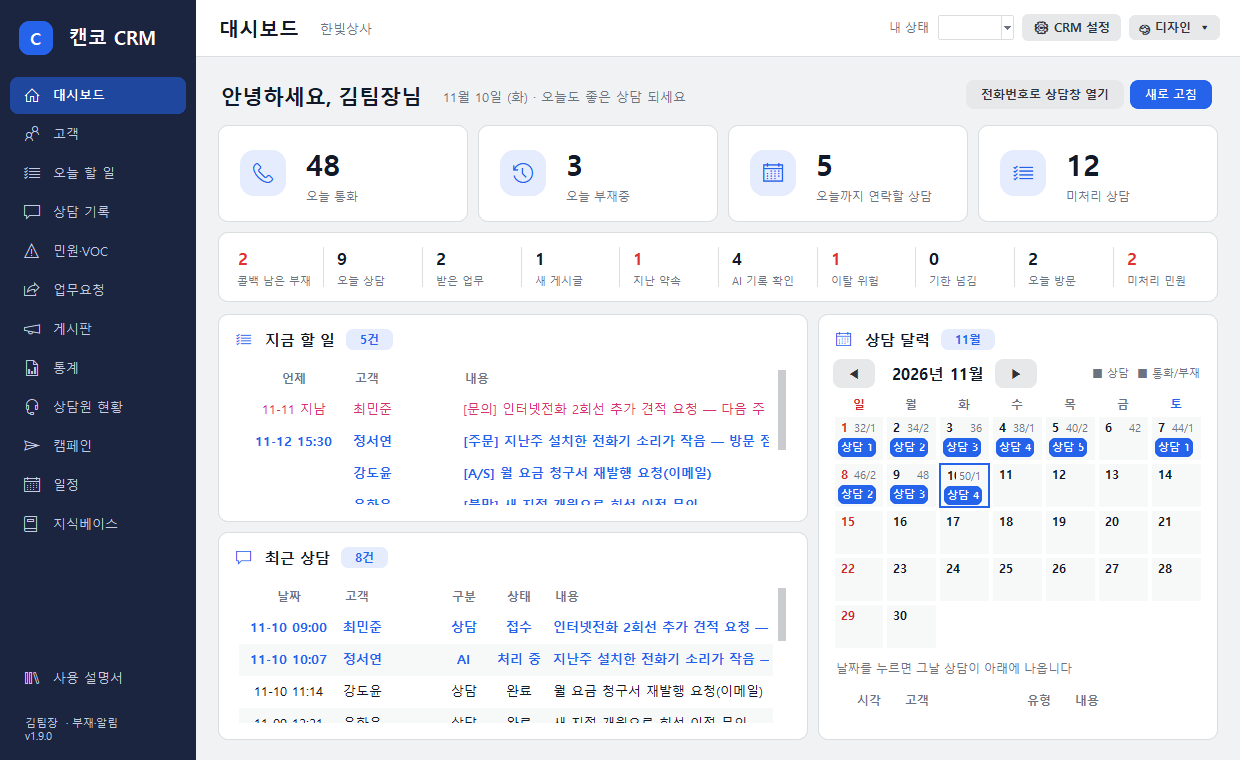
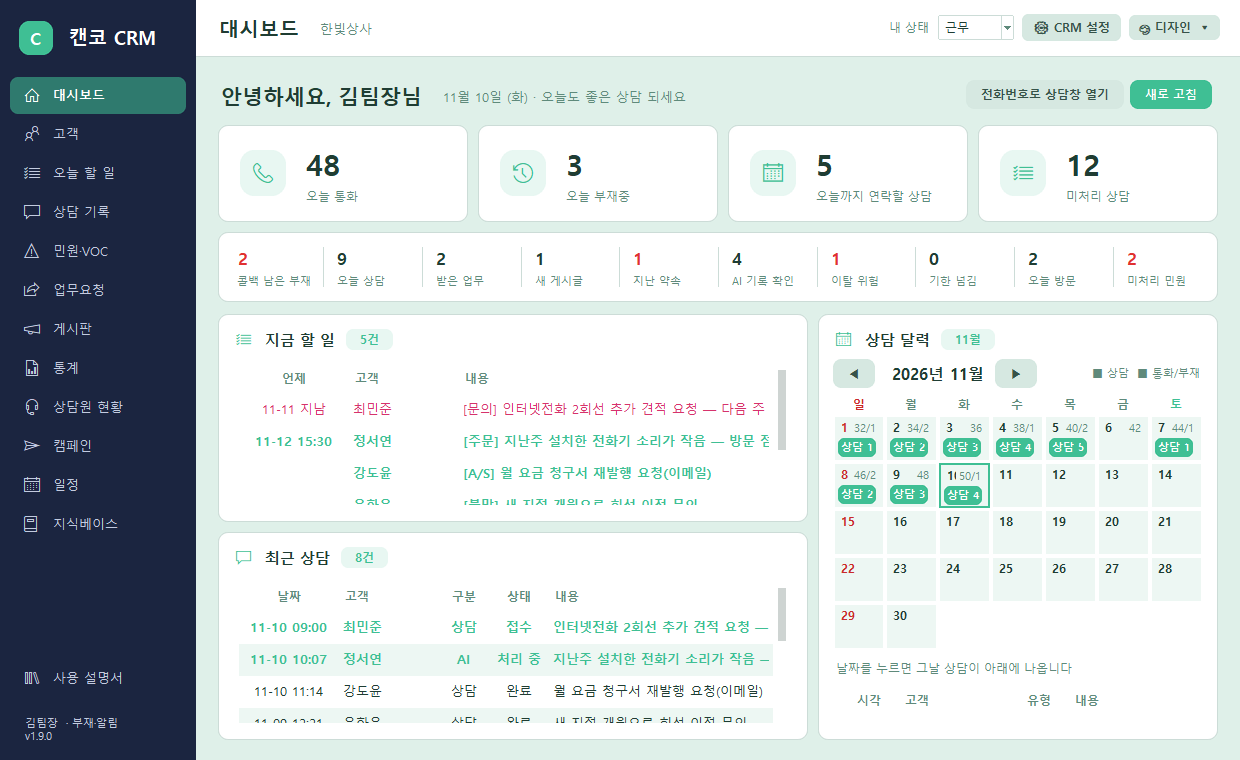
Dashboard4 large numbers (today's calls · today's missed calls · consultations to follow up by today · unprocessed consultations), and below them 10 smaller numbers (items that need attention appear in red — 1.9 adds “unresolved complaints”), plus current tasks · recent consultations · consultation calendar.
Buttons now above the tableIn Customers and Consultation Records, buttons such as Search, New Customer, and Export to Excel now sit above the table.
New dashboard · sample data screen
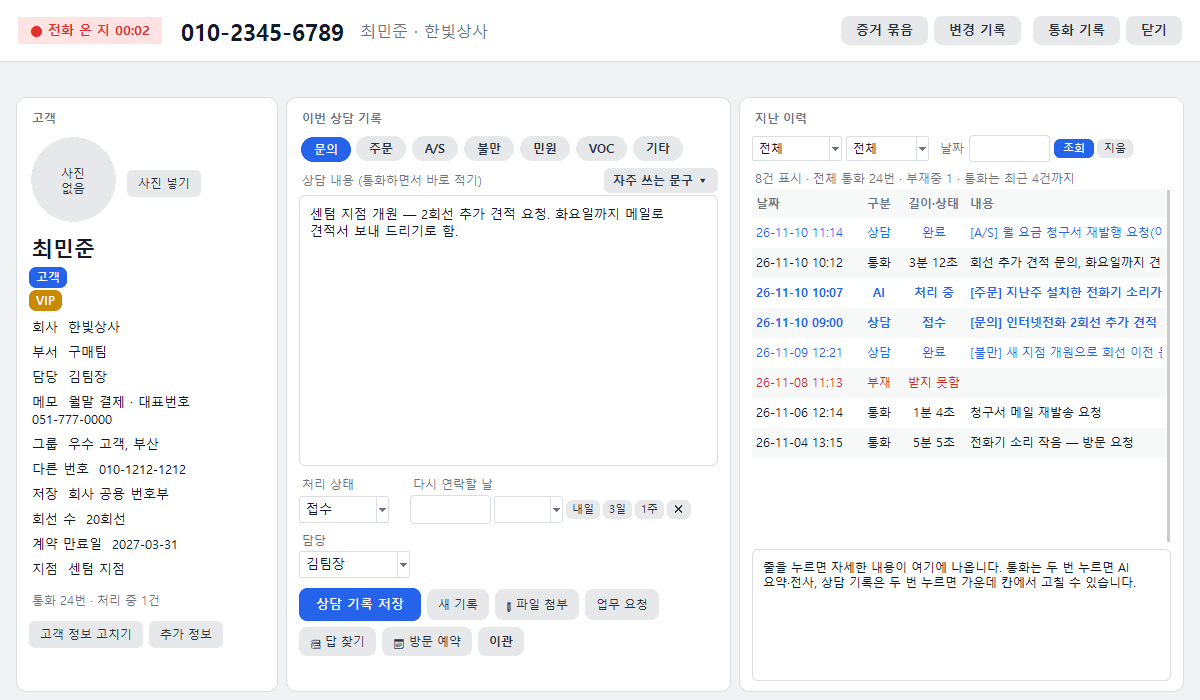
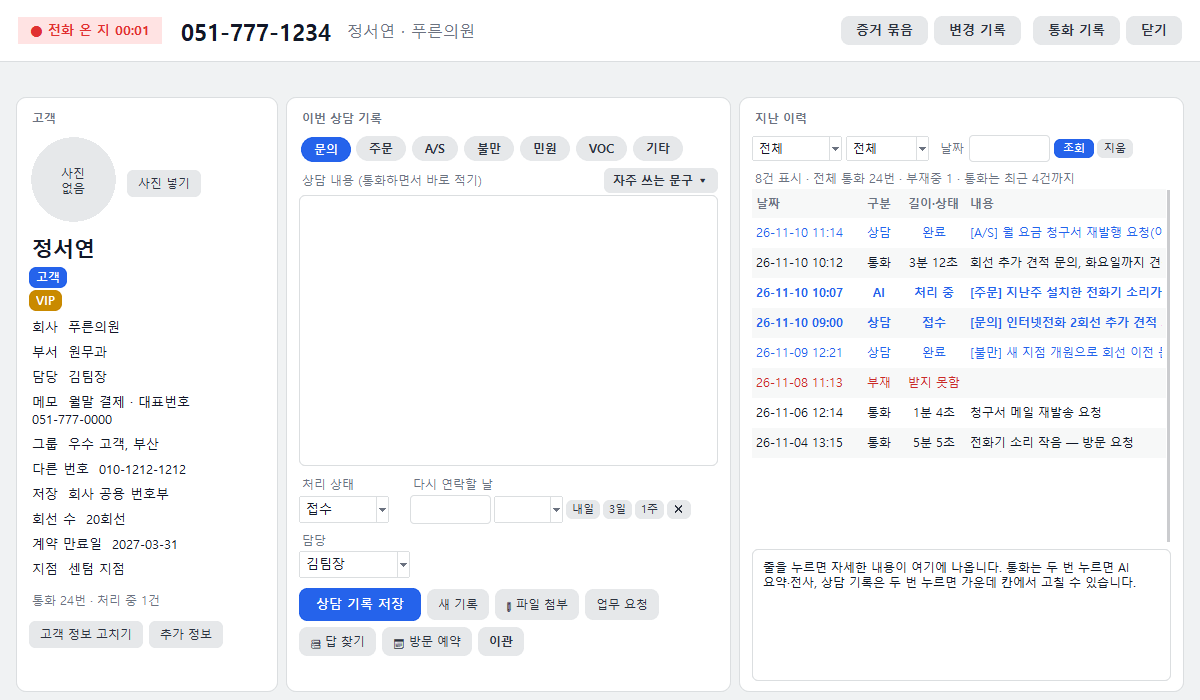
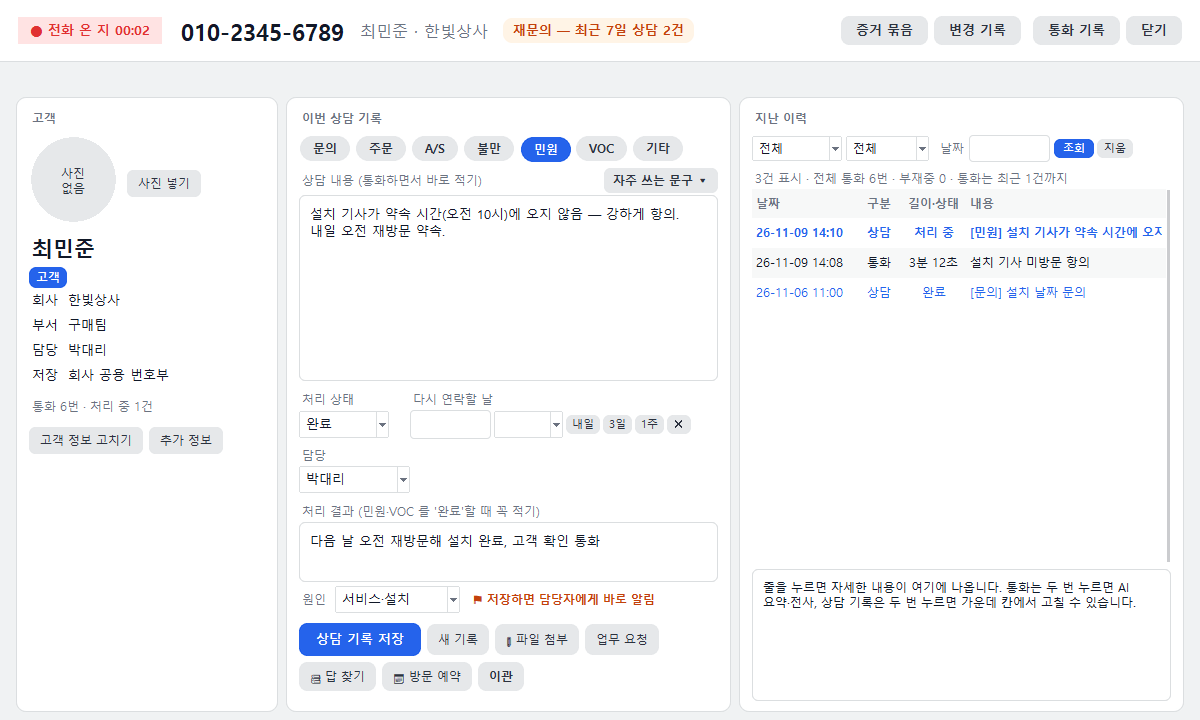
The consultation window now has a white header bar too. The red ● Call received 00:00 indicator at the top left shows that a call is in progress.
Consultation window · sample data screen
💡 Each tab loads the first time you click it, so the CRM starts up lighter and faster.
1 · Getting Started
Installation · Login
CANCO CRM is installed on the Windows PCs of companies that use EduRecording or Manggo Recording for call recording. It is a paid add-on service for subscribing companies, and only employees designated by the company can log in (separate login from Call Popup — use the same phone number and password as the recording web).
Get the installerDownload the CANCO CRM installer (CancoCRM_Setup) from ‘Utilities’ in the canco.co.kr Download Center.
InstallRun the downloaded file. If a blue Windows warning appears, click [More info] → [Run anyway].
LoginCANCO CRM uses a login separate from Call Popup. Simply enter the same phone number and password as the recording web — no separate sign-up is needed. Only employees designated as CRM users by the company can log in (see Chapter 40). If you were using 1.8, you will log in once more when switching to 1.9.
All setFrom now on, the consultation window opens automatically when a call comes in.
💡 CANCO CRM runs only on the company network and verifies the device used to sign in. It works even in companies where business and phone networks are separated.
🔒 Customers, consultation records and photos are stored on the recording PC inside your company. Headquarters only relays requests and deletes them immediately.
2 · Taking Calls
The consultation window opens when a call comes in
When the phone rings, the consultation window for that number opens automatically. Answer the call on your phone as usual.
Left — CustomerPhoto, name, type (customer, employee, vendor, other), VIP/caution tags, company, department, owner and storage location.
Center — This consultation recordA field for taking notes during the call (Chapter 4).
Right — Past historyCalls, missed calls and consultation records in date order (Chapter 7).
Top buttonsChange historyCall historyClose
Consultation window · sample data screen
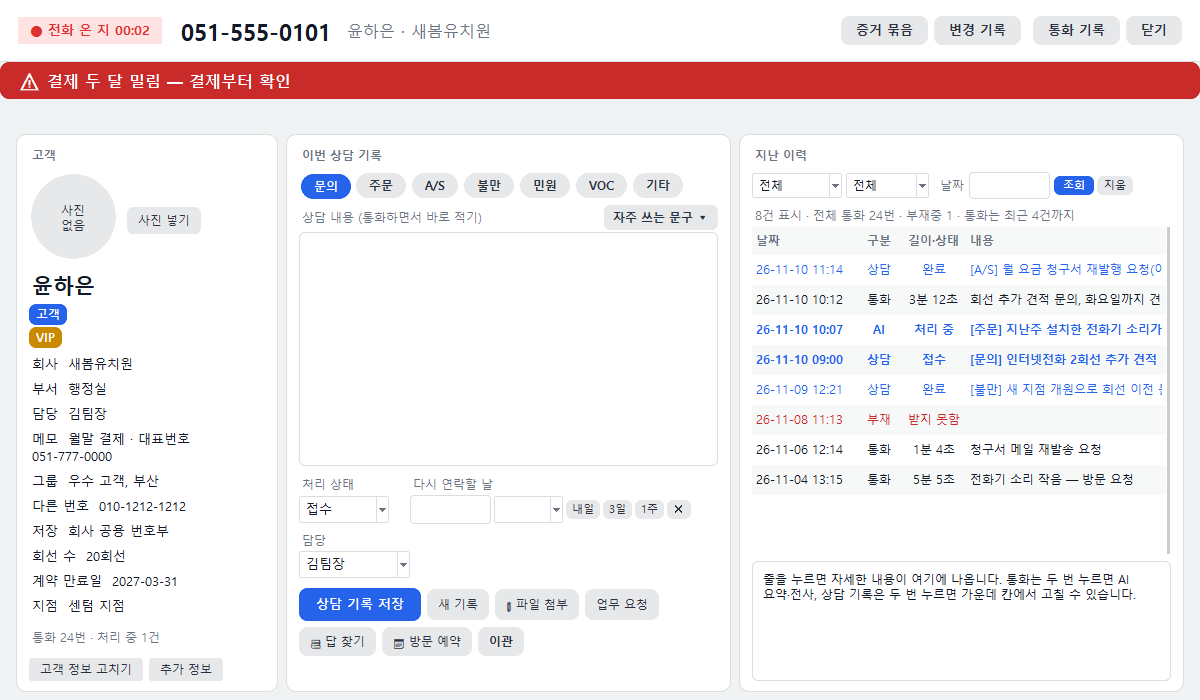
⚠ If you enter a caution note in the customer details, it appears in a large red banner at the top of the consultation window. Example: "Connect directly to the director — outstanding balance"
Red caution banner · sample data screen
3 · New Customers
Save new numbers on the spot
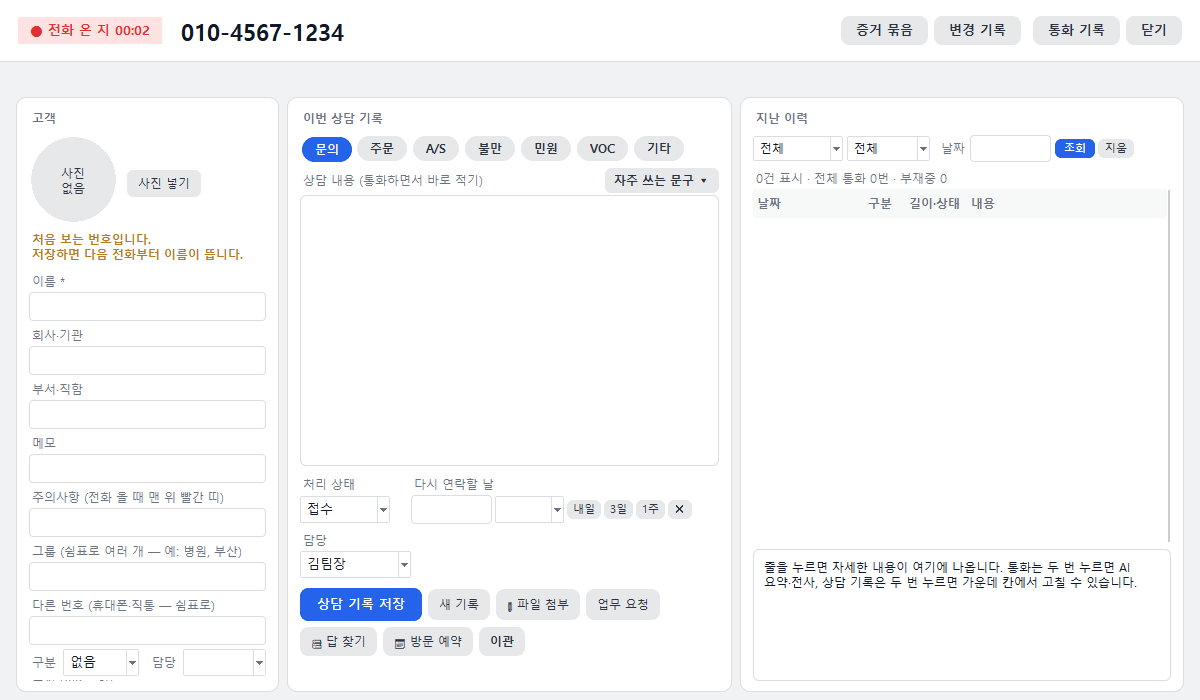
A registration field appearsFor a first-time number, an input field appears on the left of the consultation window with the message "This is a new number."
Enter a nameEnter the name (required), company or organization, department and title, notes and tags (VIP, Caution, etc.).
Choose where to saveShared company phonebook (default) — visible to all staff. My phonebook — visible only to you.
[Save as customer]The name will appear from the next call.
New number · Mint design
💡 Recording users and extension numbers are automatically classified as "Employee."
4 · Consultation Records
Write a consultation record
Choose a typeClick Inquiry, Order, A/S, Complaint or Other. Each company can rename the types in Settings (Section 15).
Write the detailsType notes while you talk. Click Frequent phrases ▾ at the top right to insert a preset sentence in one click.
StatusChoose Received, In progress or Done.
Follow-up date · AssigneeIf needed, set a date, time and assignee (Sections 5 and 6).
[Save record]Once saved, it appears right away in the history on the right. To log another matter from the same call, click New record.
💡 When a call ends, the AI call summary is saved automatically as a consultation record. If something was promised on the call, it stays in ‘Received’ status. (Admins can turn this off in Settings.)
5 · Follow-up
Follow-up dates and reminders
Set a dateEnter a date in the ‘Follow-up date’ field, or click Tomorrow3 days1 week. To remove it, click Clear.
Set a timePick a time in the next field, and a reminder pops up on the assignee's PC at that time.
Collected in Today's TasksFollow-ups are gathered in ‘Today's Tasks’ and on the dashboard, with a reminder at 9 a.m. every morning (Section 9).
6 · Teamwork
Hand over a case
Change the assigneeChoose another employee under ‘Assignee’ in the record and save.
The new assignee is notifiedA “Case handed over to you” notification pops up on that employee's PC.
Open it instantlyClick Open consultation window in the notification to open that customer's window.
To hand over with a reasonUse the Transfer button in 1.9 and the reason goes along with it, leaving a transfer history (see Chapter 37).
Handover notification
7 · History
History, AI summaries and recordings
Chronological listCalls, missed calls and consultation records appear by date on the right side of the consultation window.
FilterChoose a period and type at the top, or enter dates, then click Search.
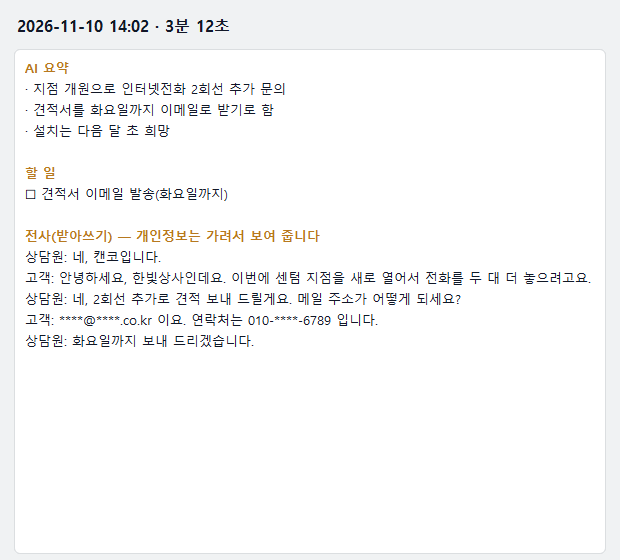
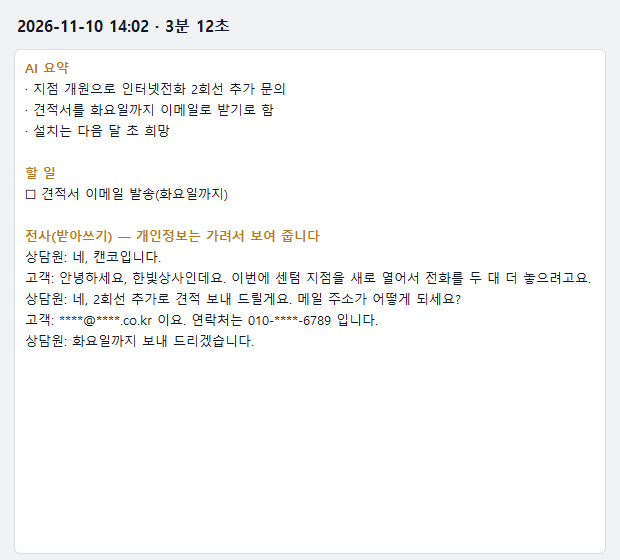
Double-click a callThe AI summary and transcript appear. Click Play recording (recording screen) to listen.
Double-click a recordEdit that record in the middle panel.
Call AI summary · transcript
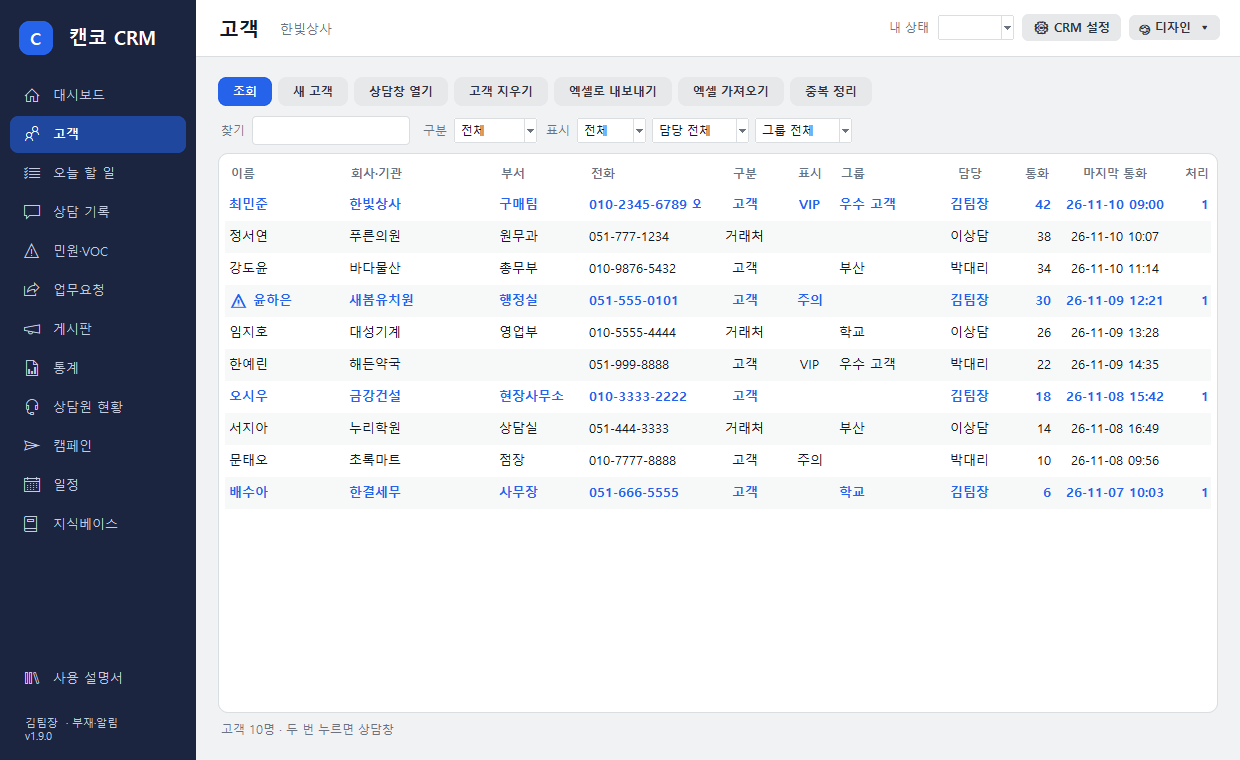
8 · Main window › Customers
Customer list · Excel
Customers tab · sample data
Search · FilterSearch by name or number, filter by category (customer, employee, vendor, other), display, assignee or group, then click Search.
New customer · Consultation windowRegister with New customer; double-click a row or click Open consultation window.
DeleteDelete customer. Customers in the company-wide phone book can be deleted only by admins.
Export to ExcelSave the customer list as an Excel file.
Import from ExcelRegister customers from an Excel sheet in one go.
Employees added automaticallyRecording users and extension numbers appear as ‘Employee (auto)’.
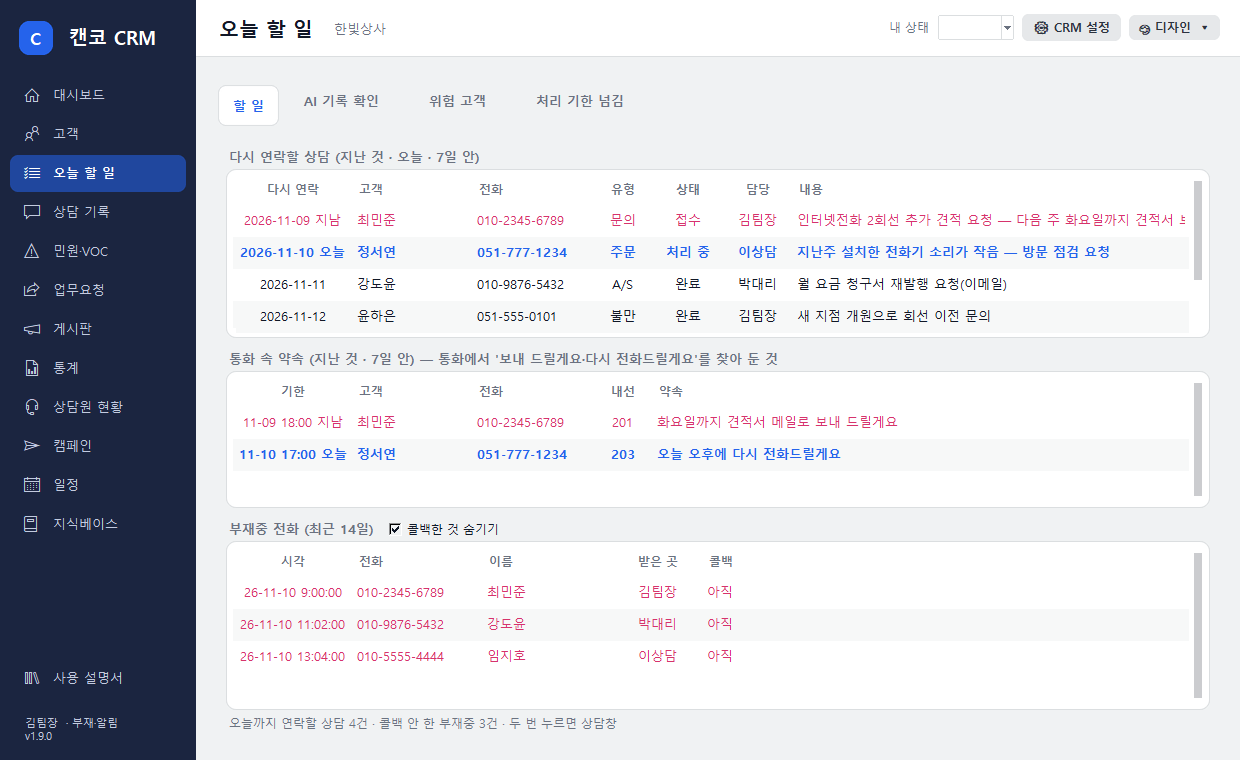
9 · Main window › Today's Tasks
Today's Tasks · Missed-call callbacks
Follow-upsShows overdue follow-ups, today's, and those due within 7 days. Overdue items are in red.
Missed calls (last 14 days)A list of unanswered calls. Once you have called back, select the row and click Mark callback done.
Hide called-back itemsCheck this to show only calls not yet returned. If you marked one by mistake, click Clear done mark.
9 a.m. reminderEvery morning at 9 a.m. you get a summary of today's tasks.
Today's Tasks tab
10 · Main window › Consultation records
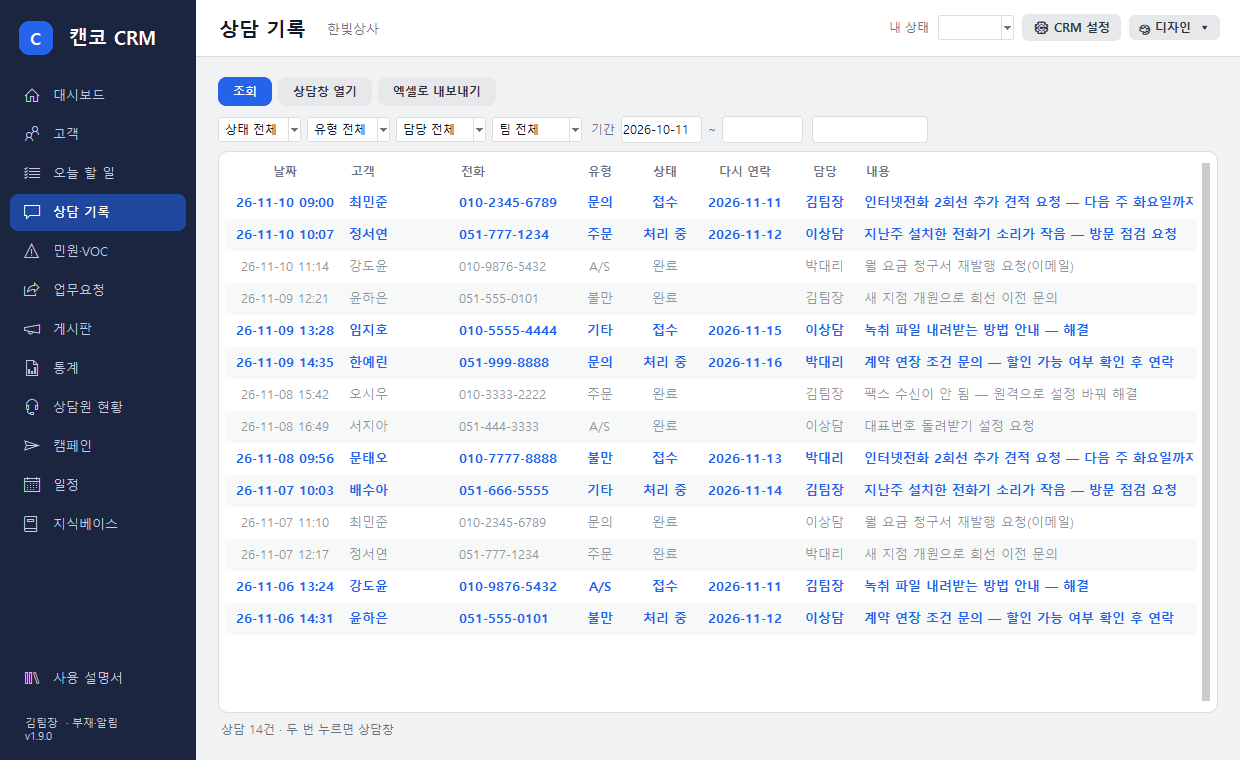
All consultation records
Set conditionsChoose status, type, assignee, period and keyword, then click Search.
Go to the consultation windowDouble-click a row or click Open consultation window.
Export to ExcelUse it for reports or meeting materials.
Consultation records tab
11 · Main window › Dashboard · Statistics
Dashboard · Statistics · Calendar
On the Dashboard, the four large numbers at the top show today's calls, today's missed calls, consultations to follow up by today, and unresolved consultations. The row below shows numbers that need attention, such as missed calls without a callback, overdue promises, and customers at risk of leaving (shown in red when greater than 0). The calendar on the right shows consultations and the number of calls/missed calls by date, and clicking a date shows that day's consultations below.
Dashboard · sample data
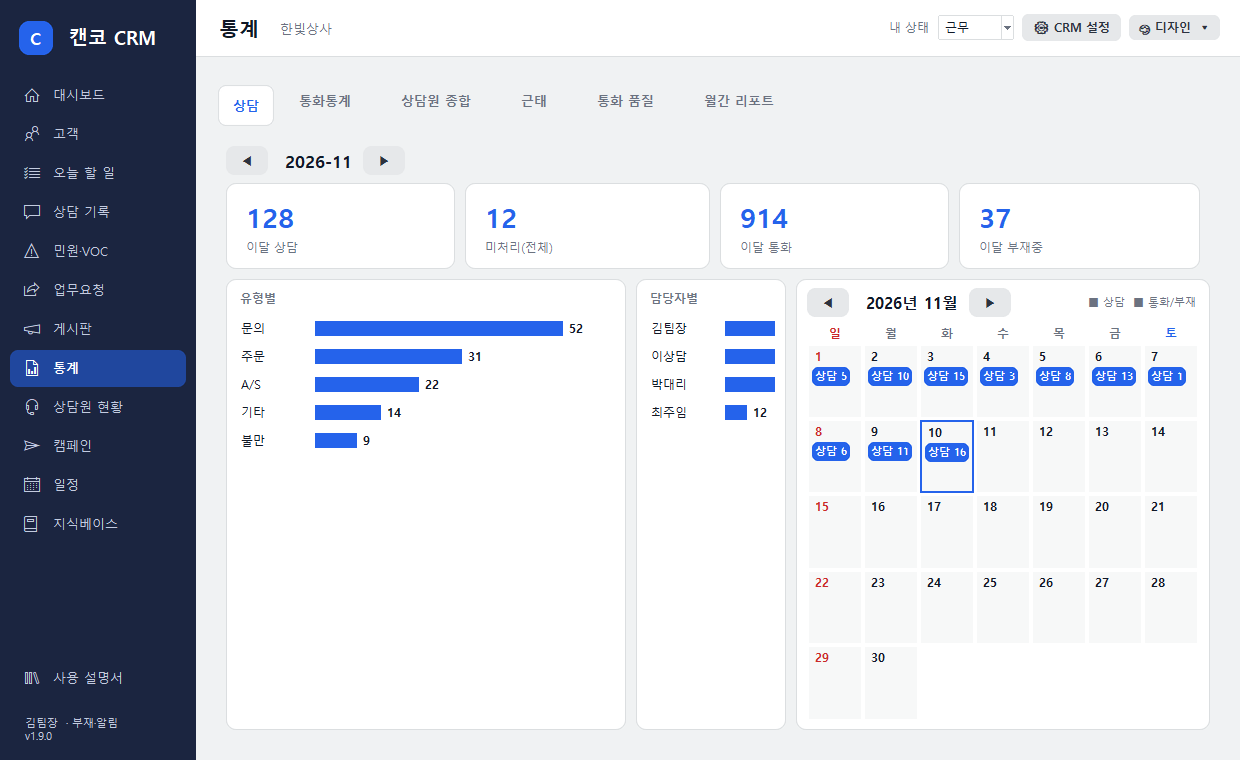
In Statistics, choose a month to see this month's consultations, open cases, calls and missed calls, with bar charts by type and by assignee and a daily calendar.
Statistics tab
12 · Customer photos
Customer profile photos
Add a photoClick Change photo in the customer panel on the left of the consultation window and choose an image file.
Remove a photoClick Remove photo to remove it.
💡 Useful for regulars whose faces are hard to remember, or to tell apart customers with the same name. Photos are also stored on the company recording PC.
13 · Customer details
Multiple numbers · Customer groups
Multiple numbersA customer can have several numbers, such as mobile and office. Calls from any of them open the same customer's consultation window. Add them under ‘Other numbers’ via Edit customer info in the window.
Customer groupsTag groups such as “Hospital, Busan” and filter by group in the Customers tab.
14 · Change log
Change history — who changed what, and when
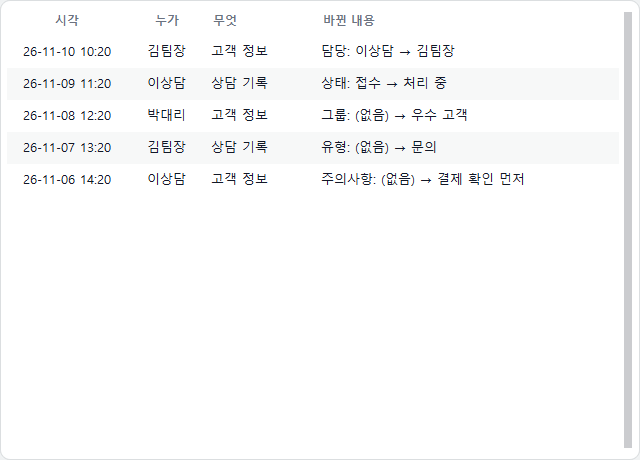
Changes to customer details or records are logged automatically. Click Change log at the top of the consultation window to see the time, who, what and what changed.
💡 Instantly answers “Who wrote this note?”
Change History
15 · Admin
CRM settings · Weekly report
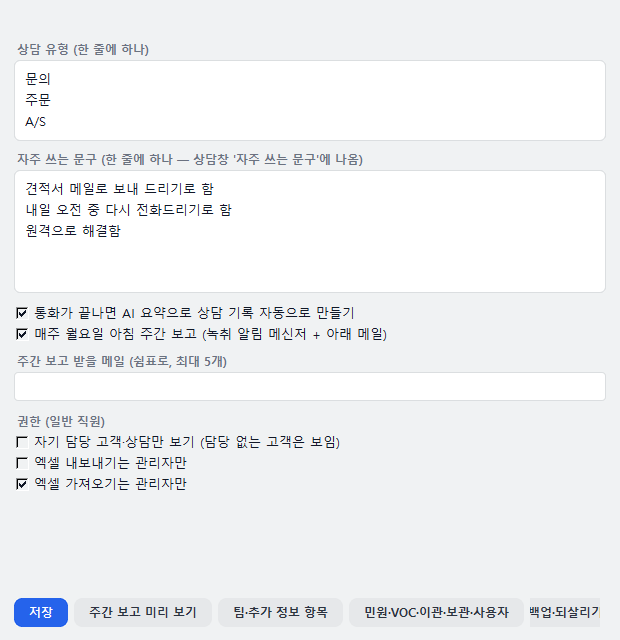
Open [CRM settings]CRM settings at the top right of the main window (admins).
Consultation typesOne per line. The type buttons in the consultation window change accordingly.
Frequent phrasesOne per line. They appear under ‘Frequent phrases’ in the consultation window.
AI auto-loggingTurn “Automatically create a consultation record from the AI summary when a call ends” on or off.
Weekly reportWhen on, a weekly report is sent every Monday morning via the recording alert messenger and to the emails listed below (comma-separated, up to 5). Check it first with Preview weekly report.
[Save]
CRM settings
16 · Themes
Change the design
Click 🎨 Design at the top right of the main window and pick a color you like. The consultation window changes to match.
Default WhiteRoseLavenderMintPeachNavy
Mint design
17 · Agent monitoring
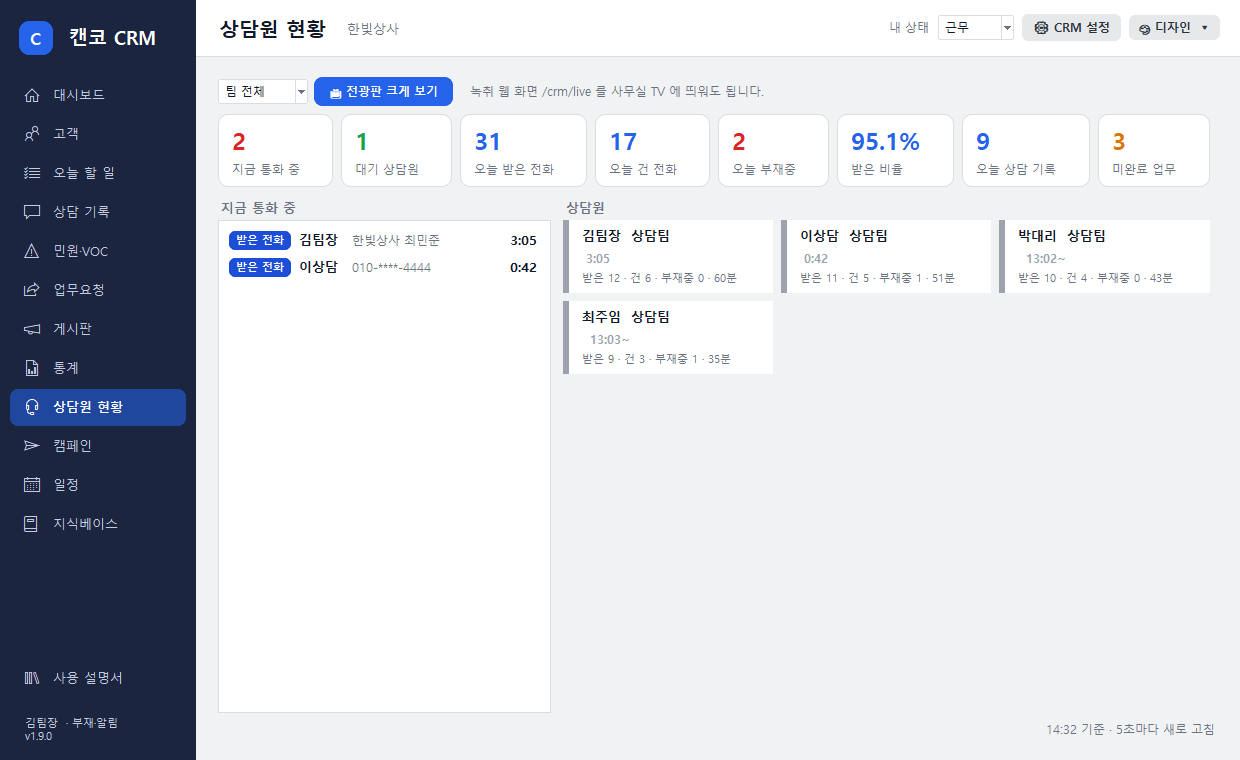
Agent status · Wallboard
In the main window's Agent status tab, see which agents are on a call and for how long, who is available, and today's inbound, outbound and missed calls and answer rate. Refreshes automatically every 5 seconds.
Agent status · sample data
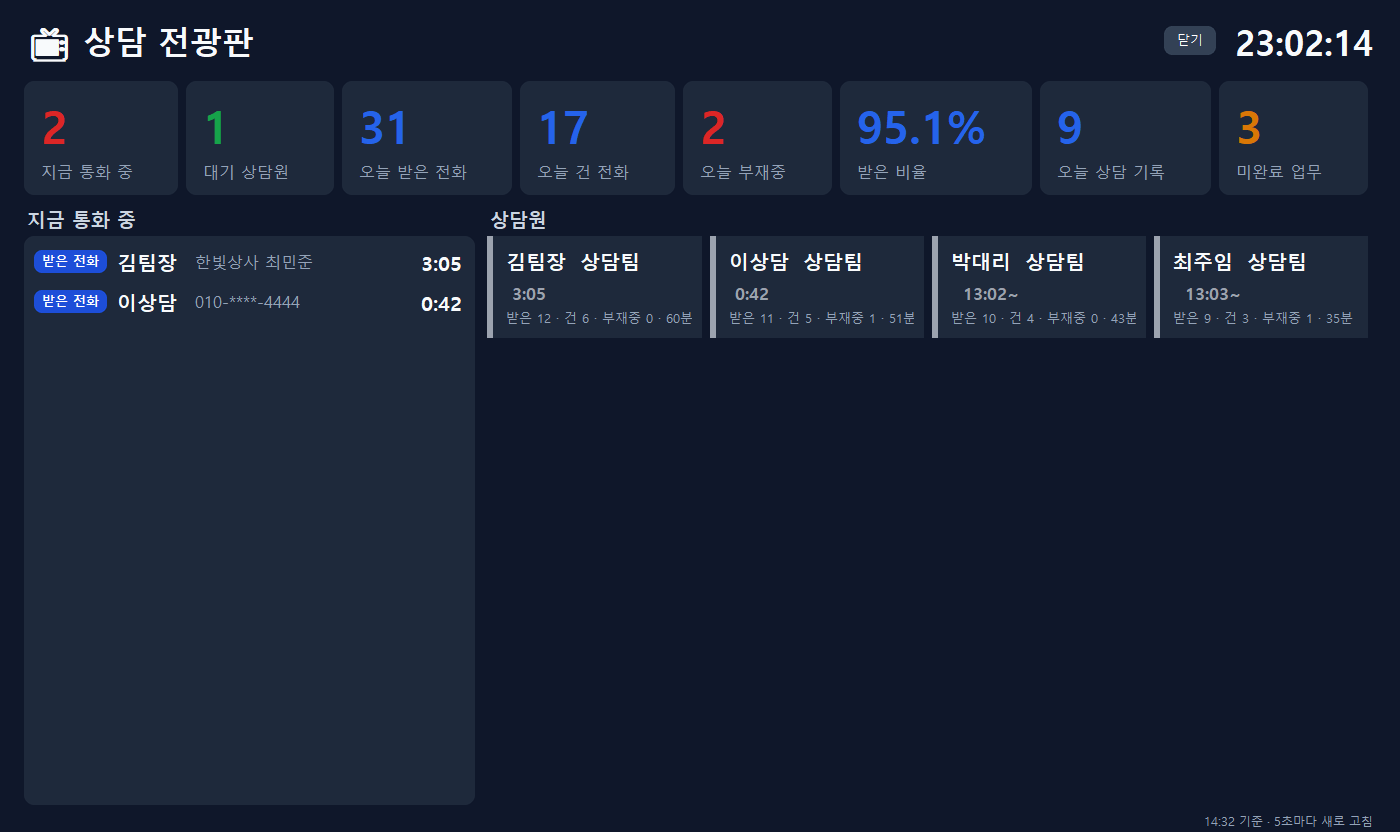
Full-screen wallboardClick 📺 Full-screen wallboard to open a dark wallboard filling the screen. Esc returns to a window; F11 goes full screen again.
Office TVAdd /crm/live to the recording web address (recording PC address) and open it in a TV browser for the same wallboard.
By teamChoose a team at the top left to show only that team.
Contact center wallboard · sample data
💡 On regular staff screens, the middle digits of the caller's number are masked (admins see all).
18 · Attendance
My status · Attendance
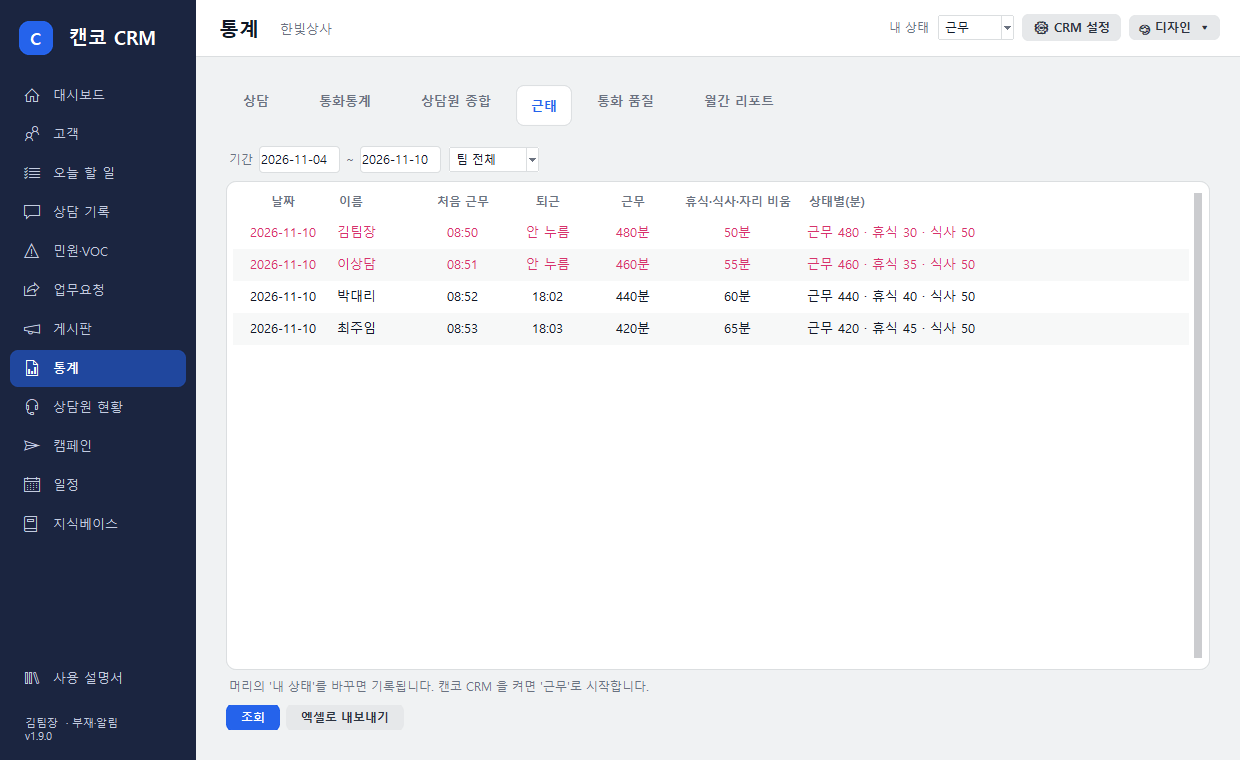
Change my statusUnder My status in the main window header, choose Working, Break, Meal, Meeting, Out of office, Away or Off duty. It shows on the wallboard immediately.
Working on launchStarting CANCO CRM sets you to ‘Working’ (unless you already chose another status that day).
View attendanceUnder Statistics › Attendance, see first clock-in, clock-out, work and break time and time per status by date and person, and export to Excel. Days without clock-out are marked in red.
Attendance · sample data
💡 Regular staff see only their own attendance; admins see everyone's.
19 · Statistics
Call Statistics · Agent Summary Statistics
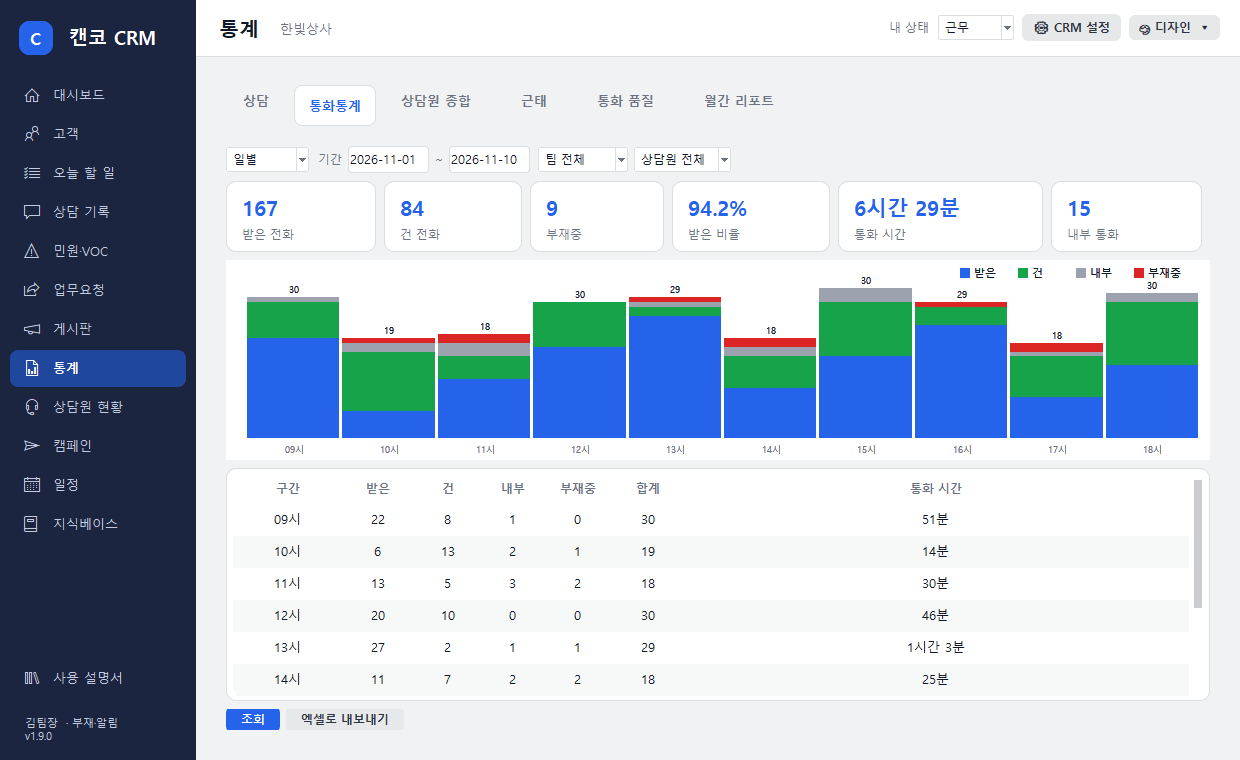
Call statisticsStatistics › Call statistics. View inbound, outbound, internal and missed calls and talk time by hour, day, weekday, week and month in bar charts and tables. Filter by period, team or agent.
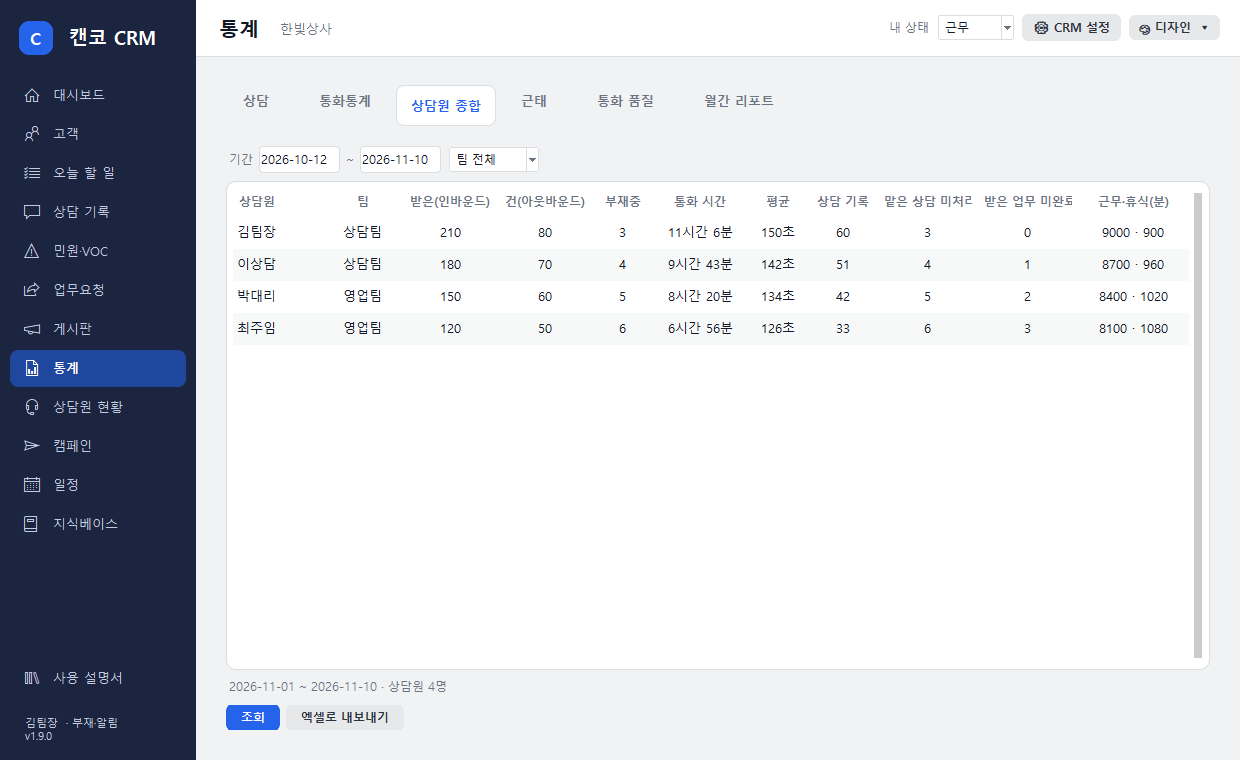
Agent summaryStatistics › Agent summary. Per agent: inbound, outbound and missed calls, talk time and average, number of records, open assigned cases, tasks received, and work and break time.
Call statistics · sample dataAgent summary statistics · sample data
💡 Every table supports Export to Excel. Regular staff see only their own row in the agent summary.
20 · Teamwork
Work requests
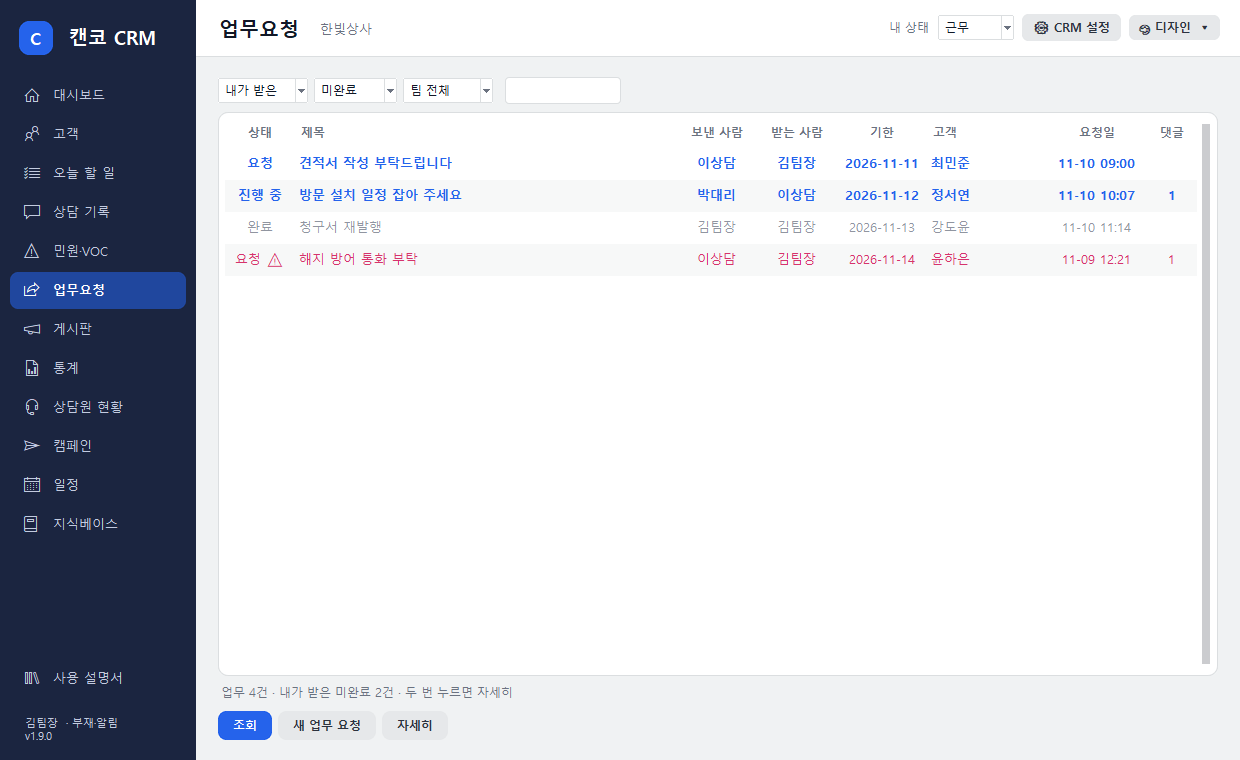
Make a requestClick New task request in the Task requests tab, or Task request in the consultation window (the customer is attached). Enter recipient, title, details and due date.
NotificationA notification appears at the bottom right of the recipient's CANCO CRM. View task opens it directly.
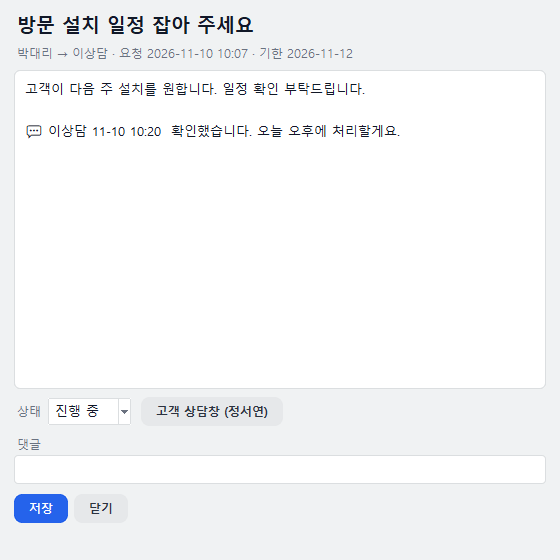
Progress · Done · CommentsMove from Requested → In progress → Done and leave comments. When done, the requester is notified. Overdue items turn red.
Task requests · sample dataTask request details
21 · Teamwork
Board
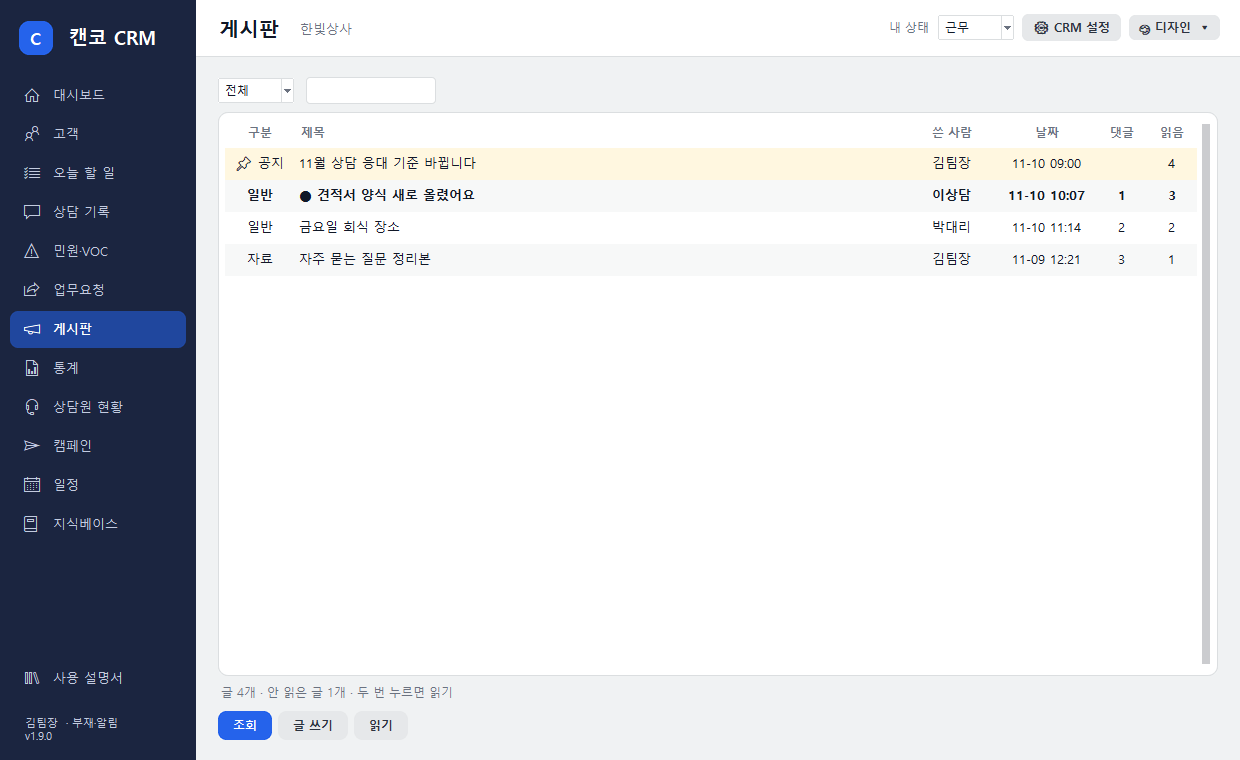
In the Board tab, post notices, work items, files and general posts and add comments. Only admins can post notices and pin them to the top. Unread posts appear in bold (●) with a read count. The dashboard shows the number of ‘unread posts’.
Board · sample data
22 · Admin settings
Teams · Custom customer fields
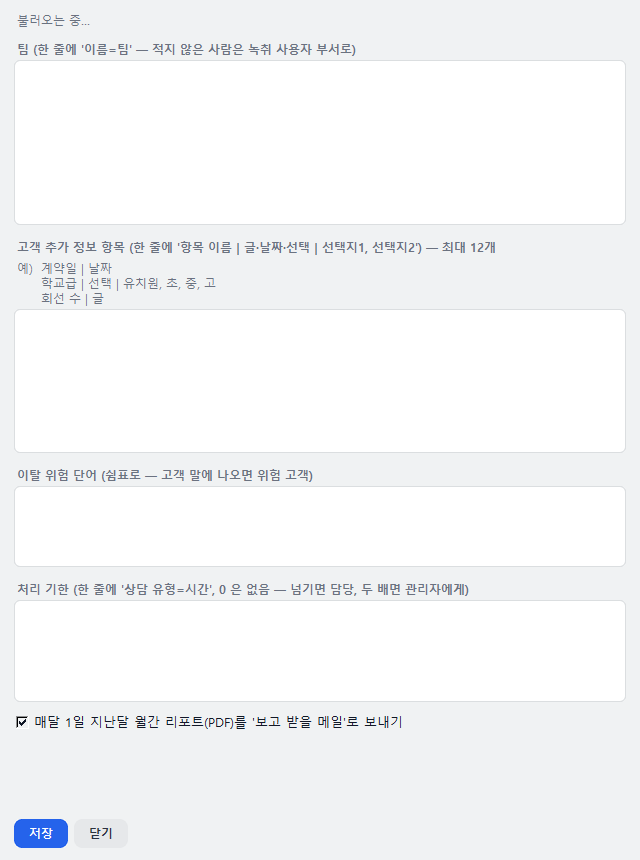
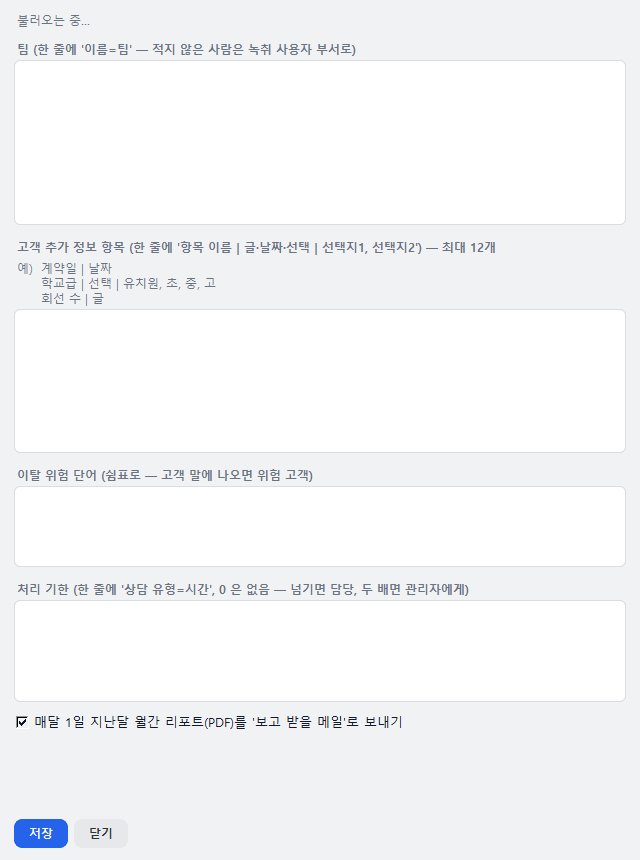
Set up teamsUnder ⚙ CRM settings › Teams · Custom fields, enter ‘Name=Team’ one per line. People not listed are grouped by their recording user department. Filter by team in records, task requests, statistics and the wallboard.
Create custom fieldsIn the same window, one per line: ‘Field name | text/date/choice | options’ (e.g. Contract date | date, Industry | choice | Hospital, School, Business). Up to 12.
Enter values per customerClick Custom fields in the customer panel of the consultation window and enter values. They appear in the customer panel and customer Excel export.
Consultation window — custom fields in the left customer panel, [Task request] belowTeams · Custom fields settings
23 · Advanced features
Play recordings · Timestamped notes
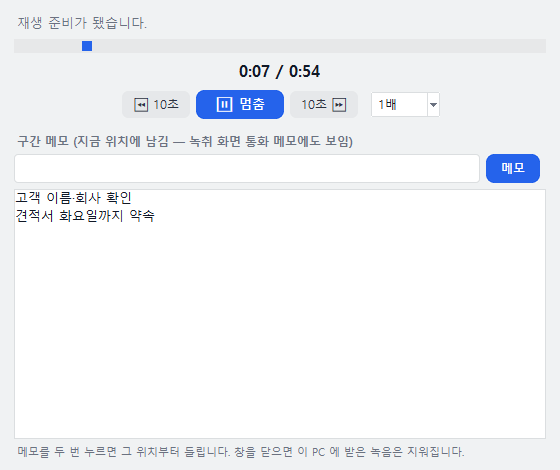
Play instantlyDouble-click a call in the history and click ▶ Play recording to play it right there. No need to switch to the recording screen.
Skip · SpeedSkip with ⏪ 10s10s ⏩ and play at 0.8–1.5x speed.
Timestamped notesType a note while listening and click Note to save it with [min:sec]. Double-click a note to replay from that point. Notes also appear in call notes on the recording screen.
Recording player · sample screen
💡 The company recording PC decrypts and sends the recording, and the file received on your PC is deleted when you close the window. Who listened and when is logged on the recording PC. Regular staff can hear only their own calls; admins can hear all calls (same rules as the recording screen).
24 · Advanced features
Automatic personal data masking
Resident registration, card and account numbers and apartment unit numbers in transcripts and AI summaries are automatically masked as ●●●. Admins can view the original with 🔓 View original in the call details window; each view is logged.
Call details — account number masked
25 · Advanced features
Promise Keeper
Promise detectionFinds promises in calls such as “I'll send the quote by 3 tomorrow” or “I'll call you back” and records them with a deadline.
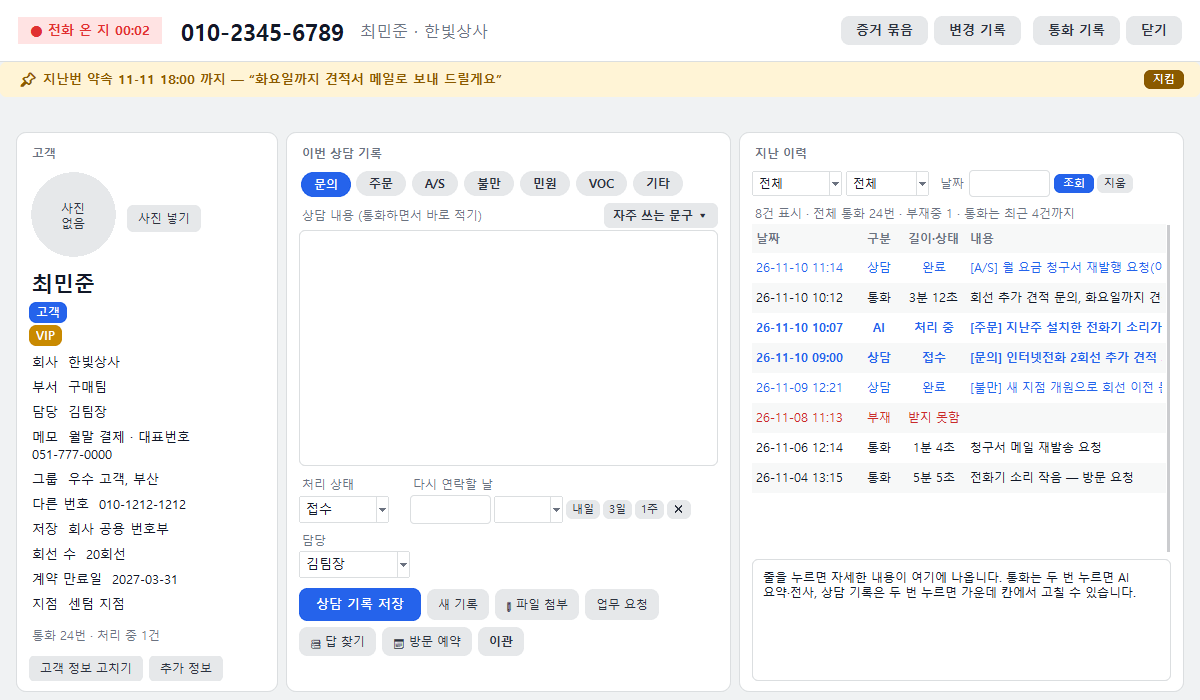
Yellow banner in the windowWhen that customer calls again, “Last promise” appears at the top of the consultation window. Overdue items are in red. Click Kept to close it.
Today's TasksPromises from calls gather under Today's Tasks › To-dos. You can click Promise keptChange deadlineNot a promise.
NotificationsOne hour before the deadline and when it passes, a notification appears in the CANCO CRM of the employee who took the call.
Top of consultation window — last promise (overdue)
26 · Advanced features
Complaint & Dispute Evidence Package
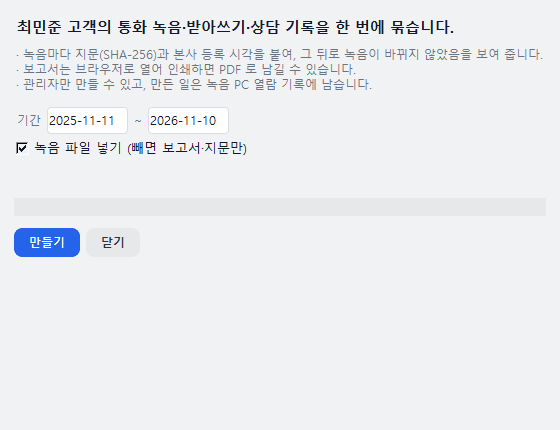
CreateClick Evidence package in the consultation window header, choose a period, then Create. Admins only.
Package contentsThe customer's original call recordings, raw transcripts, consultation records, change history, and each recording's fingerprint (SHA-256) with its HQ registration time are bundled into a single ZIP.
ReportOpen report.html in a browser and print to save it as a PDF. “Matches HQ fingerprint” means the recording has not changed since it was made.
Evidence package · sample screen
💡 Use it when records must be submitted, such as abusive complaints at schools or disputes with hospitals or public offices. Creation is logged on the recording PC. It contains personal data, so share it only where necessary.
27 · Advanced features
AI record review — a CRM that logs as you talk
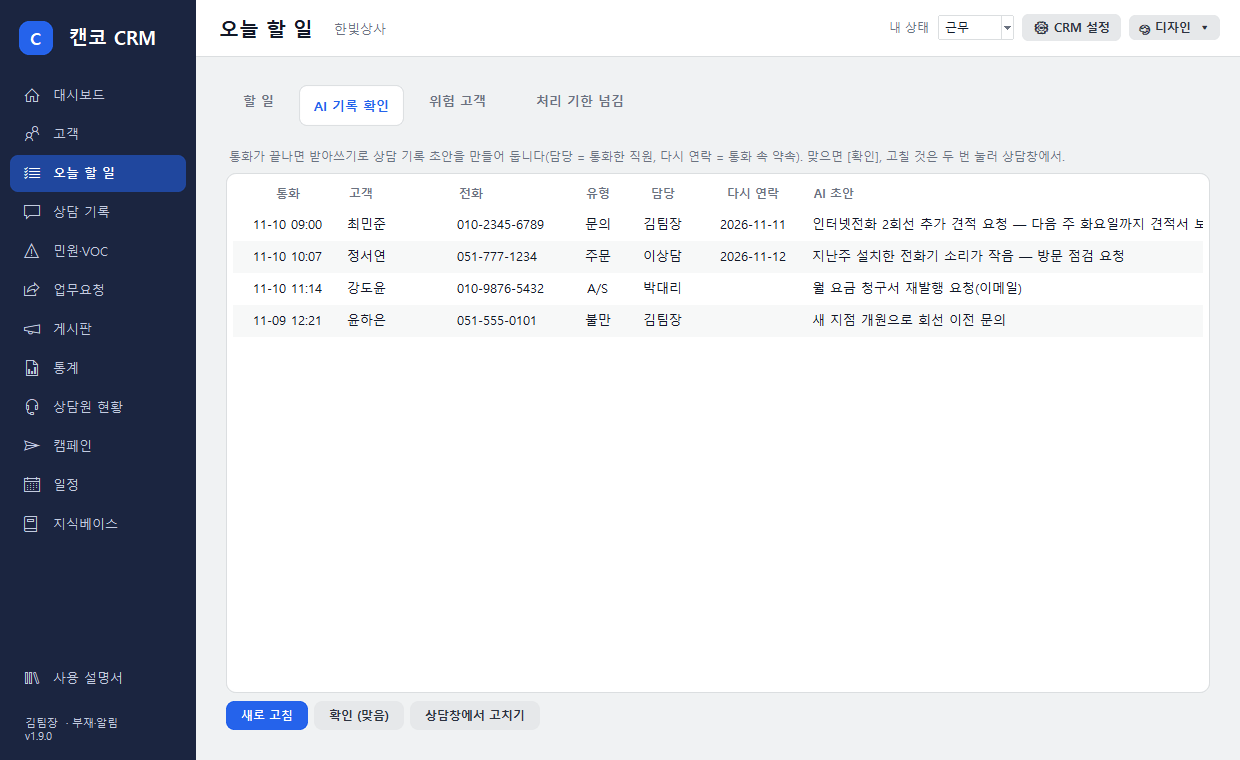
Draft firstWhen a call ends, a record draft is created from the transcript, with the assignee (the employee on the call) and follow-up date (from promises in the call) filled in.
Review in the windowOpen that customer's consultation window and the draft is already in the record field. Edit only what's needed and click Save record to confirm.
Review in bulkUnder Today's Tasks › AI record review, just click Confirm (correct) for accurate ones.
AI record review · sample screen
💡 Companies without an AI server still get drafts from transcripts and rules. Turn on “Automatically create a consultation record from the AI summary when a call ends” in CRM settings.
28 · Advanced features
At-risk customers · Automatic escalation
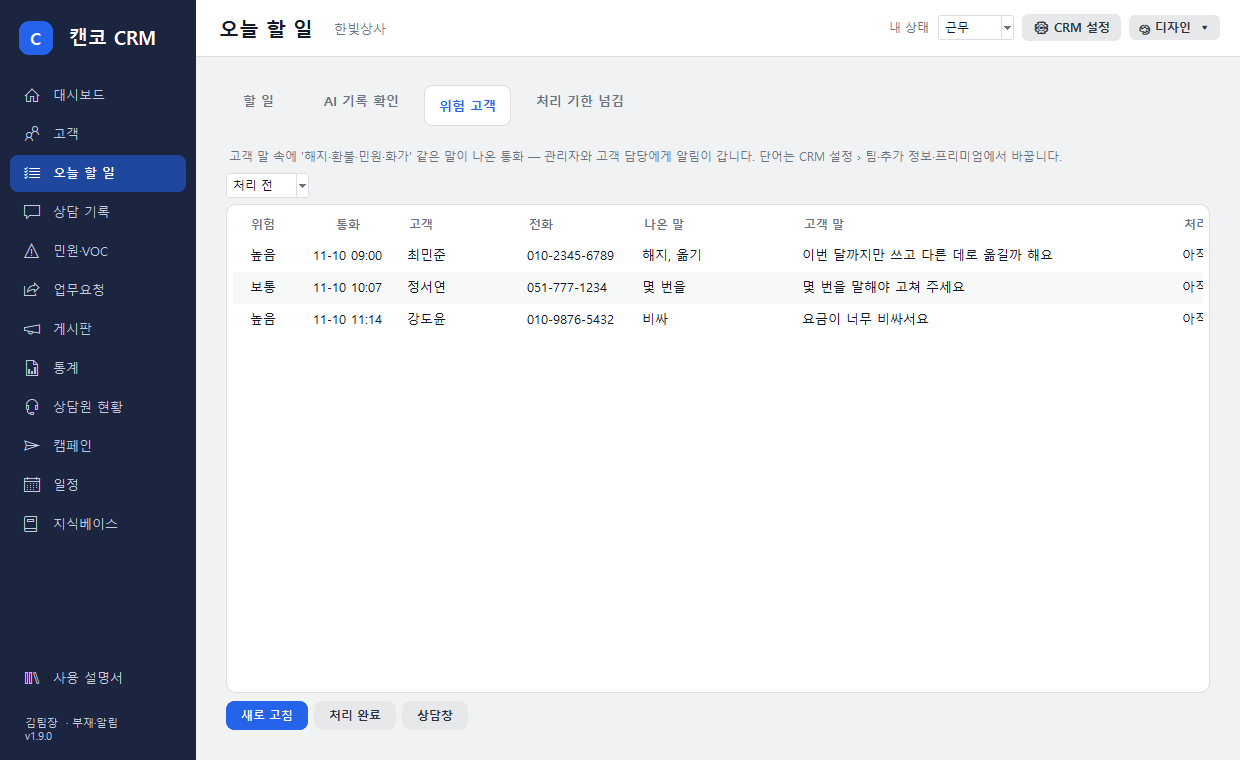
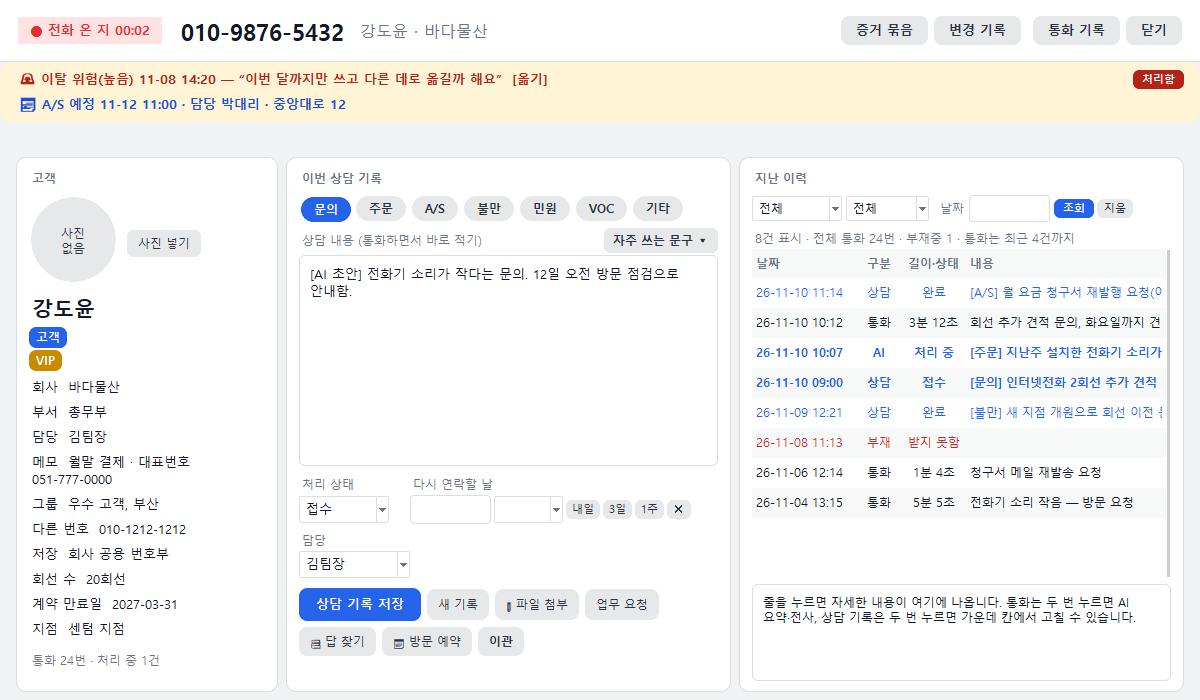
At-risk customersWhen a customer says words like “cancel, refund, complaint, angry,” admins and the customer's assignee are alerted and a 🚨 banner appears at the top of the window. Handle them under Today's Tasks › At-risk customers. Keywords can be changed in Settings.
Handling deadlinesEach consultation type has a deadline (default: complaints 4 hours, A/S, inquiries and orders 24 hours, other 48 hours). Past it, the assignee is alerted; past double, admins are alerted (automatic escalation). Items gather under Overdue.
At-risk customers · sample screenConsultation window — churn-risk and scheduled-visit banners, AI draft
29 · Advanced features
Call Quality Evaluation
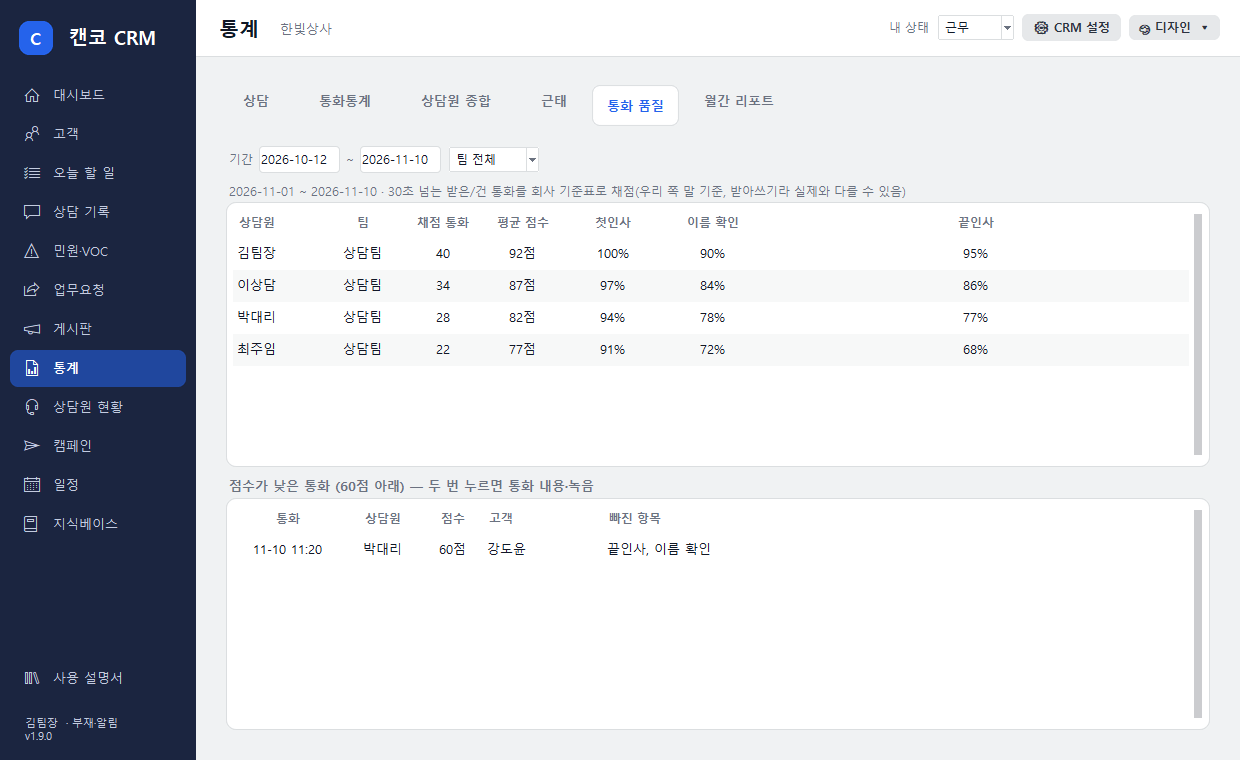
ViewStatistics › Call quality. Shows each agent's average score and pass rate per item (greeting, customer verification, empathy, closing, prohibited expressions).
Low-scoring callsCalls below 60 points gather at the bottom. Double-click to see the call details and recording.
Edit criteriaChange the company scorecard in Edit criteria. One per line: “item | required/prohibited | points | start/end/all | keywords”.
Call quality · sample screen
💡 Only our side (staff) is scored. Transcripts may differ from what was actually said, so adapt the scorecard to your company's standards. Regular staff see only their own scores.
30 · Advanced features
Outbound Campaigns
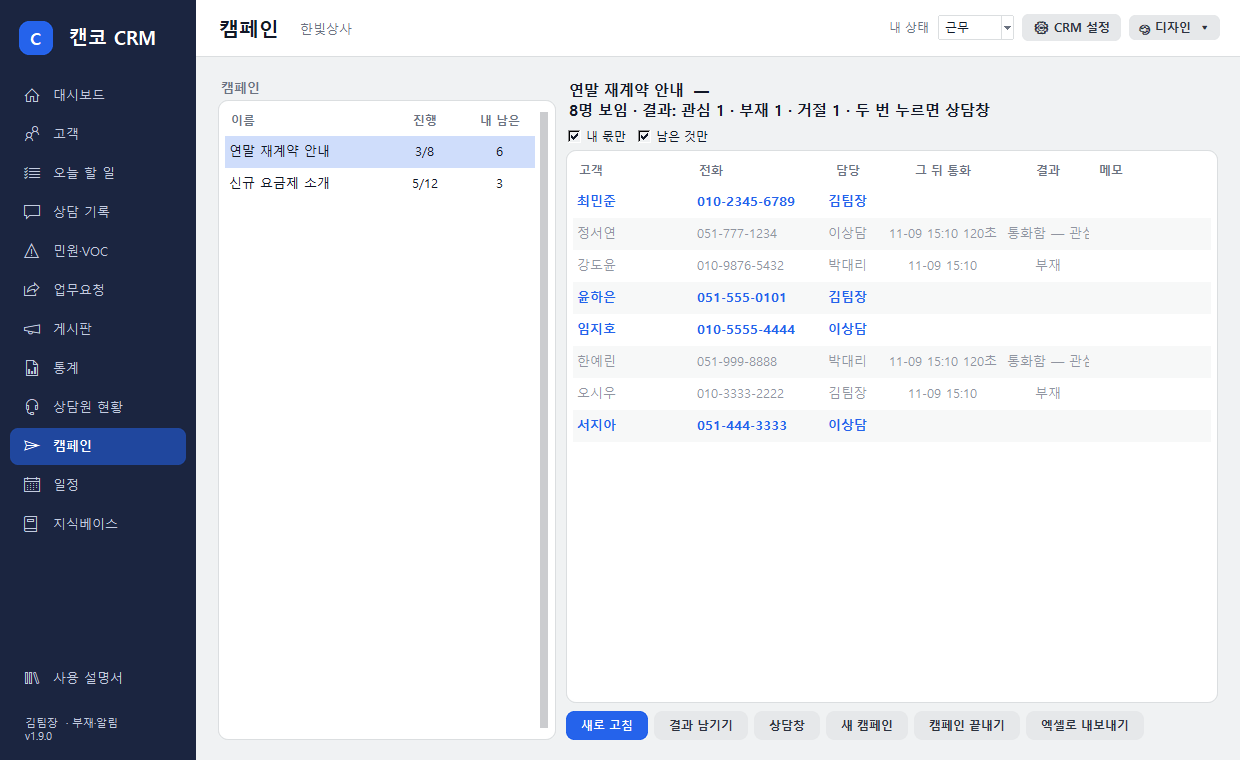
Create (admin)Campaigns tab › New campaign. Choose a name, targets (customer group or number list) and assigned staff, and the list is distributed among them in turn.
Call and log resultsDouble-click a customer in your share to open the window, then after the call click Log result (reached, no answer, call back, declined, wrong number). The result is also saved in the customer's records.
Track progressEach campaign shows progress (completed/total), counts per result, and whether calls were actually made after launch. Export to Excel.
Campaigns · sample screen
31 · Advanced features
Visit · After-Sales Scheduling
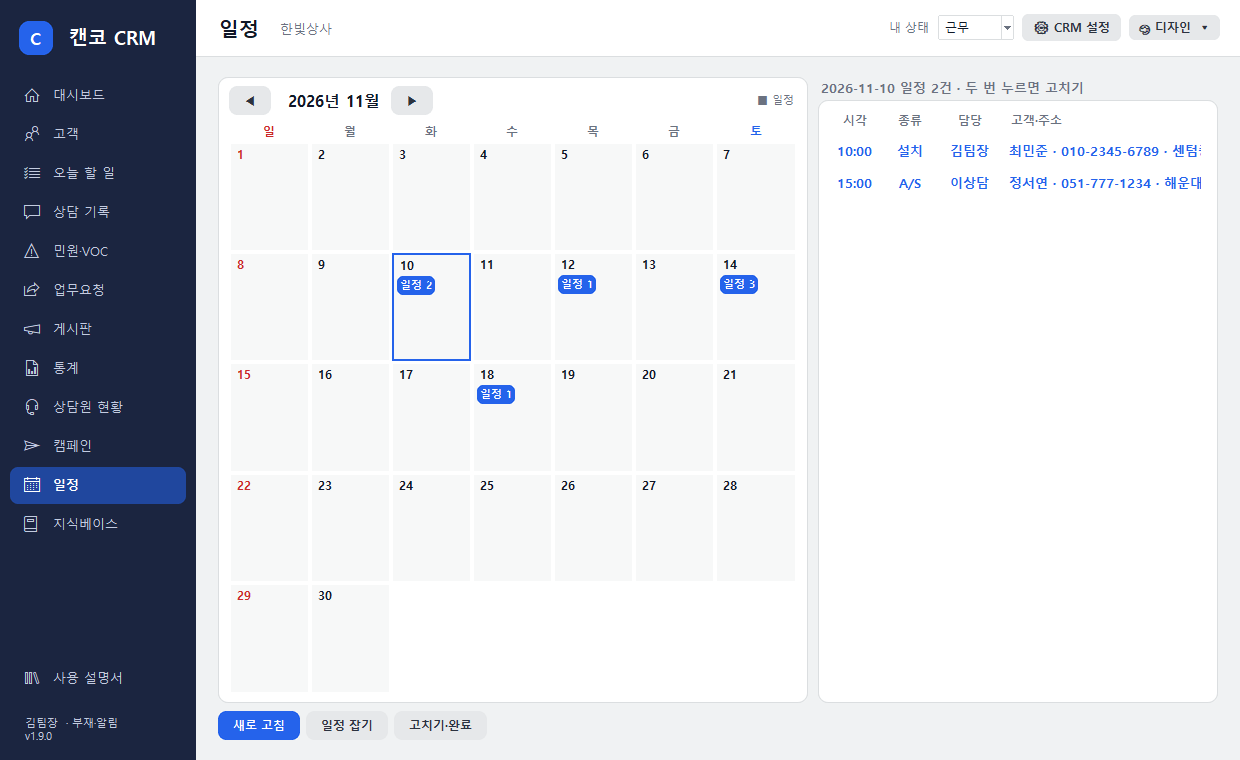
ScheduleClick 📅 Book visit in the consultation window or Schedule in the Calendar tab. Enter date, time, type (visit, installation, A/S, pickup), assignee and address.
NotificationsThe assigned employee is notified when it is scheduled and 1 hour before the visit. A “Visit scheduled” banner appears in that customer's window.
CalendarClick a date in the Calendar tab to see that day's schedule; double-click to mark done or cancelled.
Calendar · sample screen
32 · Advanced features
Knowledge Base · Answer Finder
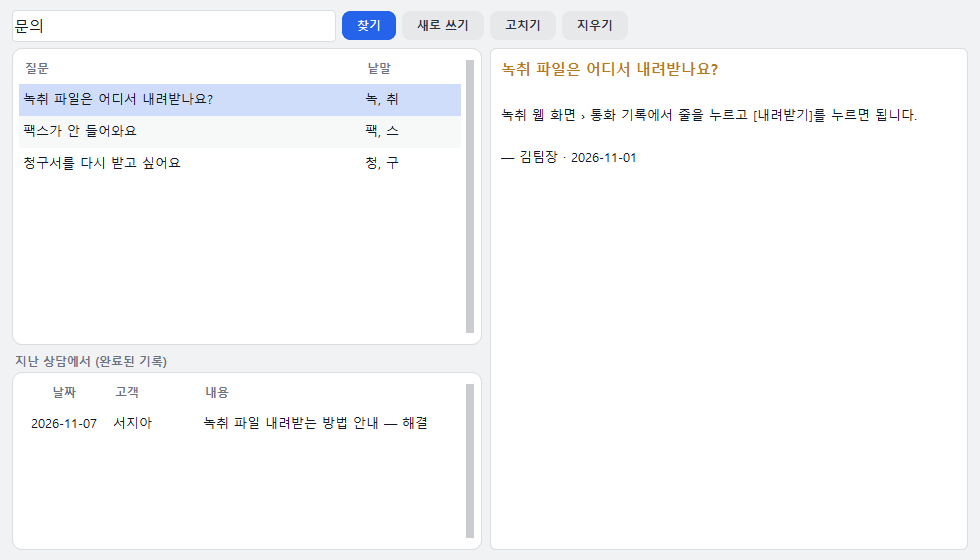
Collect FAQs in the Knowledge base tab, then during a call use 📚 Find answers in the consultation window to find answers matching the current conversation. Similar past completed cases are shown too.
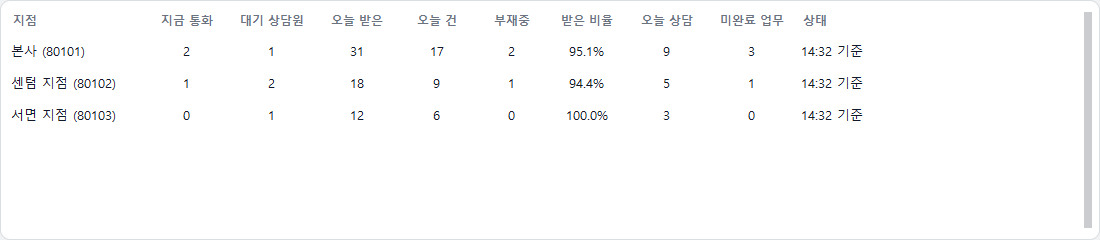
Companies with multiple recording PCs at HQ and branches can use 🏢 All branches in the main window header to see, per branch, active calls, available agents, today's inbound/outbound and missed calls and answer rate in one table (every 10 seconds). Double-click a branch to open its wallboard.
All branches at a glance · sample branches
💡 Branch groups and authorized admins are set up by CANCO Customer Support (1670-1369). The button appears only to those admins.
34 · Advanced features
Monthly Management Report
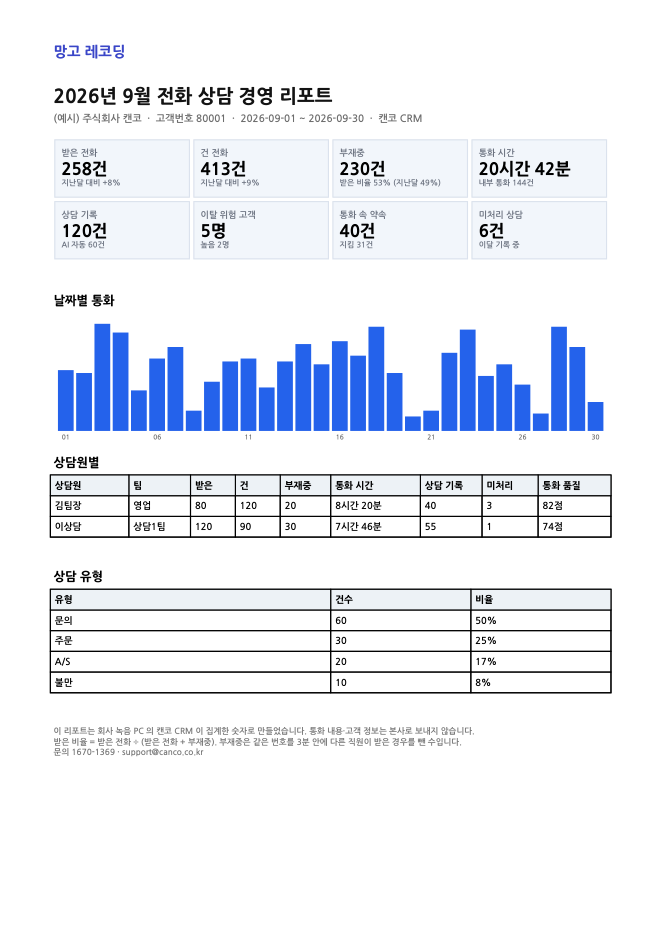
AutomaticOn the morning of the 1st of each month, a PDF summarizing last month's call volume, answer rate, agent performance, consultation types, at-risk customers and promises is sent to the “Report email” in CRM settings.
Preview · ResendUnder Statistics › Monthly report, choose a month and click View; admins can click Email PDF.
Monthly report PDF · sample figures
💡 Only figures and employee names are sent to HQ to create the PDF; call content and customer data are never sent.
35 · Admin settings
Advanced feature settings
Under ⚙ CRM settings › Teams · Custom fields, set teams, custom customer fields, churn-risk keywords, handling deadlines (type=hours) and monthly report delivery. Only admins can save.
Teams · Custom fields · Advanced settings
36 · 1.9 Complaints·VOC
Complaint & VOC Intake · Instant Alerts
Consultation types Dissatisfaction, Complaint, and VOC are all handled as “complaints.” The moment you save, an alert goes to the person who will handle it, and when you finish, you must record the result and cause.
Choosing the typeIn “This consultation record” in the consultation window, click Complaint or VOC and a Result · Cause field appears below.
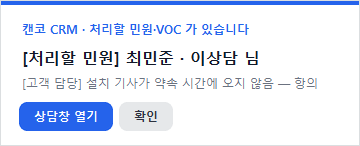
Save = Instant alertA “There is a complaint/VOC to handle” alert appears on the PCs of the person in charge and the employee assigned to that customer.
Automatic assignmentIf the customer has a separate owner, it goes to that person; otherwise, an owner is assigned according to the rotation order set by the administrator (if the employee who took the call is in the rotation, it stays with that person).
Repeat inquiry flagIf the same customer contacts you again within 7 days, Repeat inquiry — N consultations in the last 7 days appears at the top of the consultation window, and the previous owner is also notified.
When completingTo save the status as “Completed,” you must enter the result and cause. Once completed, a “closure confirmation request” is sent to the administrator.
Complaints Awaiting Action Alerts — Jump Straight In with [Open Consultation Window]
💡 The default deadlines are 4 hours for complaints and 24 hours for VOC. If a deadline is missed, the assigned person is notified; if it runs past double the time, the administrator is notified (Chapter 28).
37 · 1.9 Working Together
Transfer · Bulk Transfer
Hand off consultations that are not yours to the right staff member, with a reason attached. Each transfer is kept as a 'Transfer History' entry on the consultation.
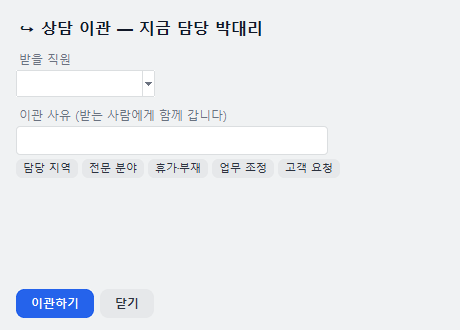
Click [Transfer]Use Transfer at the bottom of the consultation window, or select a row in the Complaints/VOC menu and click Transfer. (In the consultation window, the target is a saved record or a record selected from past history.)
Recipient · ReasonSelect the recipient and enter a reason. Buttons such as Assigned Area, Specialty, and Leave/Absence let you fill it in quickly.
NotificationsThe recipient gets a "You have received a transferred consultation" alert (with the reason), and the original owner gets a "Your consultation has been transferred" alert.
Who Can TransferStaff can transfer only their own consultations. Administrators can transfer any consultation.
Consultation Transfer — Recipient · Reason
Bulk Transfer (Administrator)
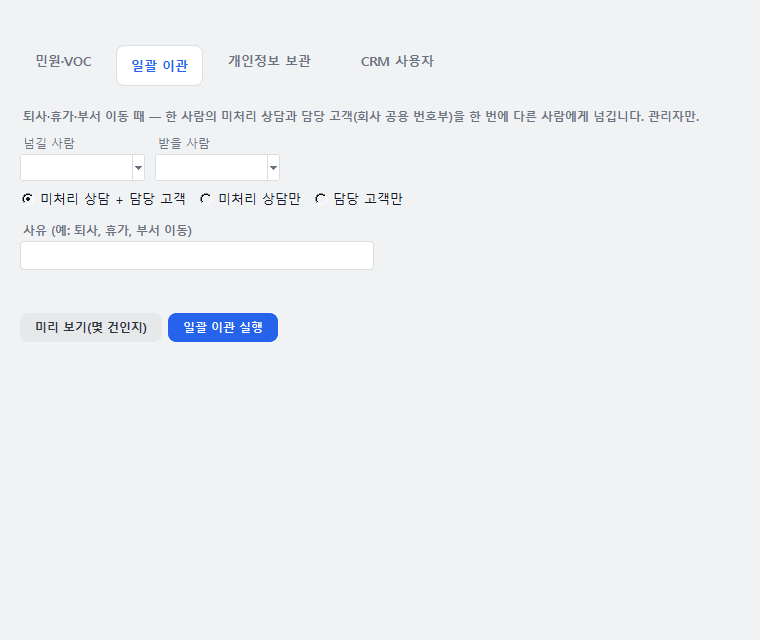
When someone leaves, takes leave, or changes departments, hand off all of their open consultations and assigned customers (the company shared phonebook) at once. Go to ⚙ CRM Settings › Complaints · VOC · Transfer · Archive · Users › Bulk Transfer, set the person handing off, the recipient, and the reason, check the count with Preview (number of items), then click Run Bulk Transfer.
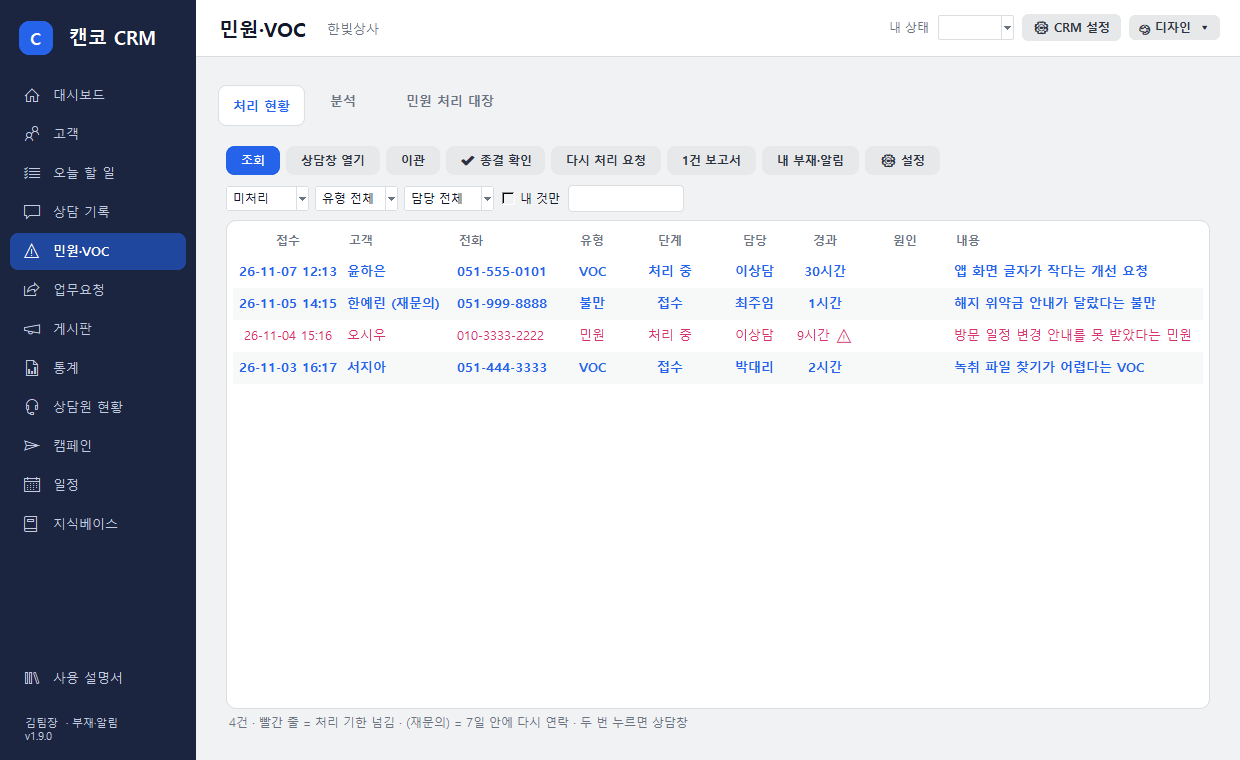
From the left menu, Complaints · VOC lets you follow every complaint from start to finish. It is divided into three small tabs at the top.
Processing StatusFilter by stage (unprocessed · pending closure · closed · all), type, assignee, or “My items only.” Red line = processing deadline exceeded; (Re-inquiry) next to a name = contacted again within 7 days. Double-click to open the consultation window.
Closure Confirmation (Admin)Select a completed case and click ✔ Confirm Closure — you can leave closing remarks. If the handling is insufficient, use Request Reprocessing to send it back to the assignee with the reason.
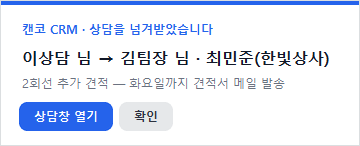
Single-Case ReportSelect a case and open the Single-Case Report — receipt, handling result, cause, transfer history, and closing remarks are organized on one page, which you can print or save as a PDF.
Complaints & VOC › Processing Status · Sample Data Screen
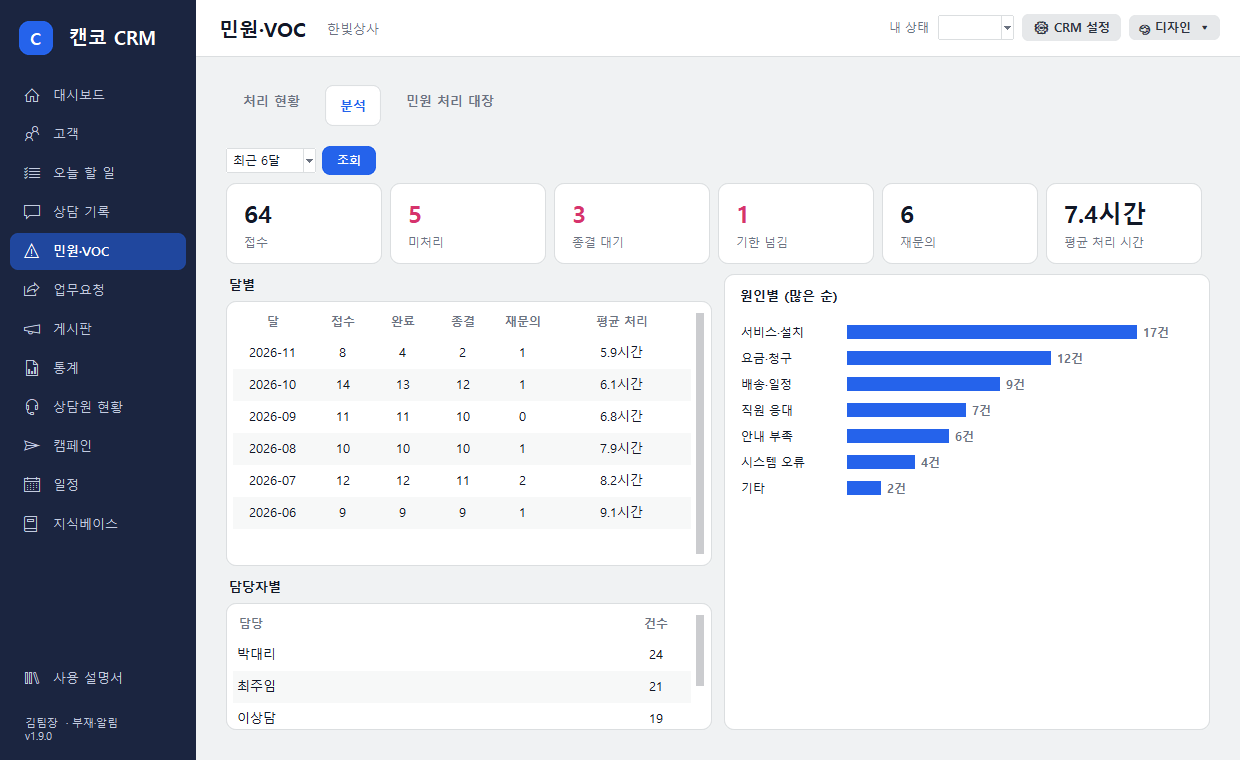
Analysis — Receipts, unprocessed, pending closure, overdue, re-inquiries, and average processing time for the last 3, 6, or 12 months, plus a monthly table, counts by assignee, and bars by cause (in descending order). Use it to fix the most frequent causes first.
Complaints & VOC › Analysis
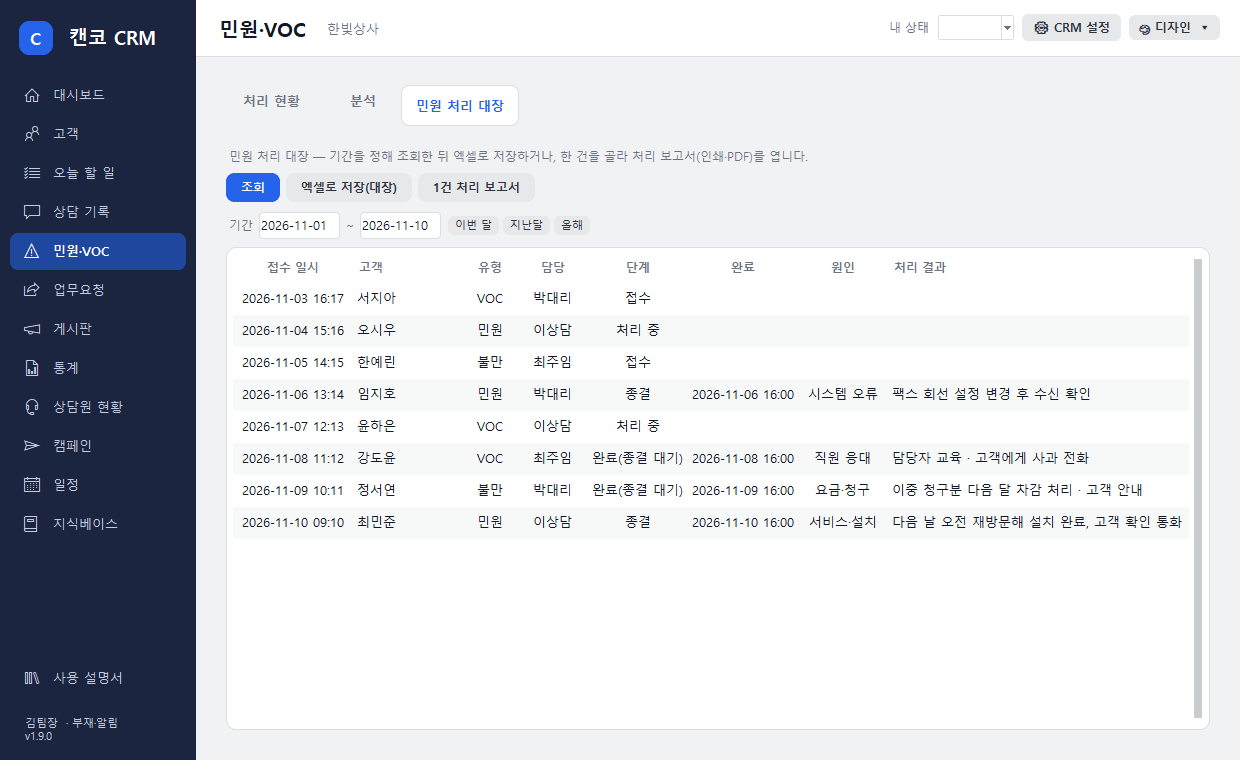
Complaint Handling Register — Choose a period (this month · last month · this year), run the search, then save to Excel (register). It includes number, received date and time, customer, type, content, assignee, handling result, cause, completion, closure confirmation, processing time, re-inquiry, and transfer history. You can use it as is for the complaint handling records that schools and institutions must keep.
Complaints & VOC › Complaint Handling Register
39 · 1.9 Never Miss a Thing
Absence · Delegate · Notification Email · Missing Record Alert
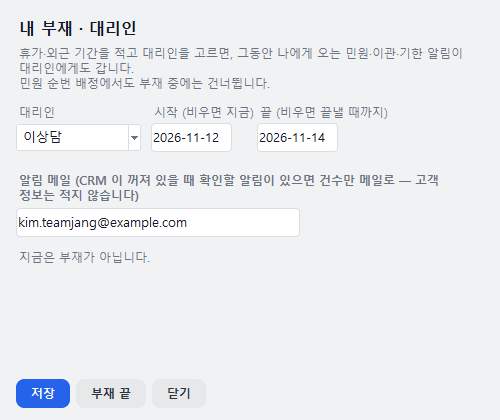
My Absence · DelegateClick your name (· Absence/Alerts) at the bottom left (the same as My Absence/Alerts in the Complaints & VOC menu). Set your leave or off-site period and a delegate, and during that time complaints, transfers, and deadline alerts sent to you will also go to the delegate, and you will be skipped in complaint rotation assignment. When you return, click End Absence.
Notification EmailEnter your email address in the same window, and when there are alerts to check while the CRM is off, you will be notified by email with the count only (no customer names, numbers, or content; up to once every 2 hours).
Missing Consultation Record AlertIf a call with a customer lasted over 1 minute and there is still no consultation record for that customer after 30 minutes, the employee who took the call receives a “No consultation record after the call” alert (up to 10 per person per day).
My Absence · Delegate · Notification Email
40 · 1.9 Admin Settings
Complaint Settings · CRM Users · Personal Data Retention
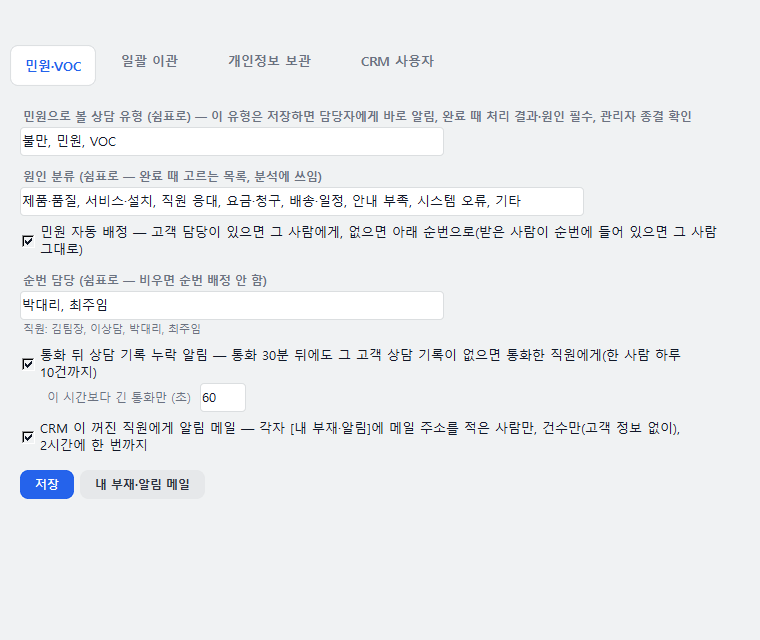
⚙ CRM Settings › Complaints·VOC·Transfer·Retention·Users window. Only administrators can save, bulk transfer, delete, or assign users.
Complaints·VOCTurn on or off the types treated as complaints, the cause category list, automatic assignment and rotating owners, missing-record alerts (by call length), and email alerts for staff whose CRM is turned off.
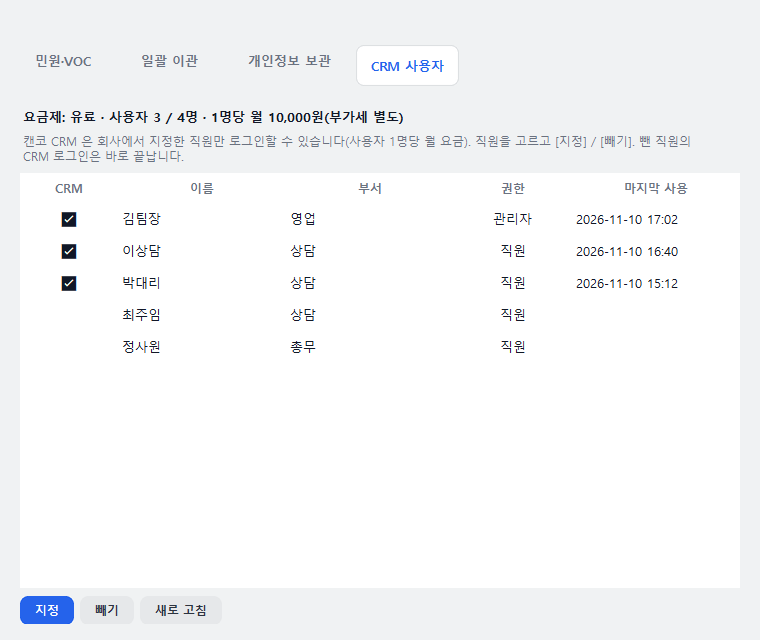
CRM UsersCANCO CRM can be accessed only by staff designated by your company (billed by number of users). Select a staff member and click Assign / Remove — a removed staff member's CRM login ends immediately. To add more users, please contact CANCO Co., Ltd.
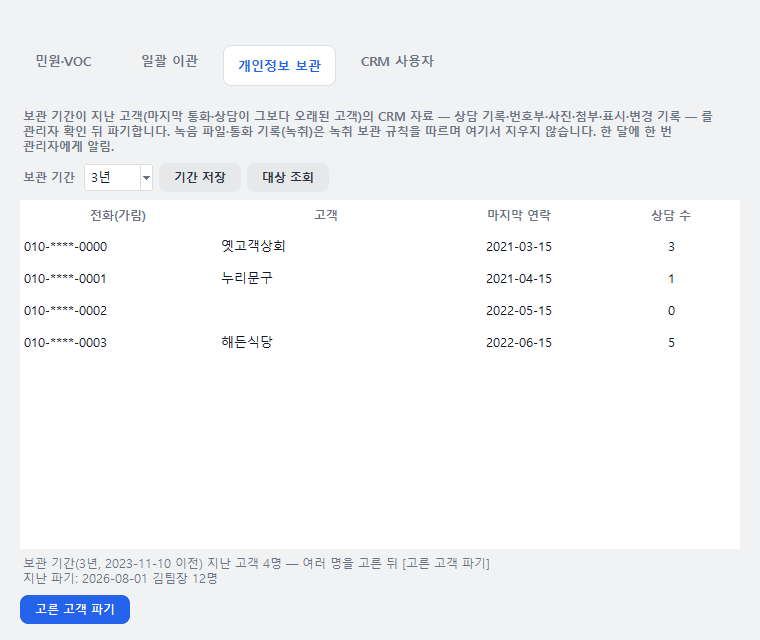
Personal Data RetentionSet a retention period (default: 3 years), and customers whose last call or consultation is older than that period appear in the list. Select them, click Destroy Selected Customers, and type 'Destroy' to confirm. Their CRM data (consultation records, number book, photos, attachments, labels, and change history) will be deleted, and a destruction record (with masked numbers) will be kept. Call recording files and call logs follow the call recording retention rules and are not deleted here. When there are eligible customers, an administrator is notified once a month.
Complaints·VOC Settings
CRM Users — Assign · RemovePersonal Data Retention Period · Deletion
41 · Help
FAQ
Q. Is it paid?
Call Popup is free. CANCO CRM is a paid add-on service for companies that apply for it, and the company administrator designates the staff who will use CRM (CRM Settings › Complaints·VOC·Transfer·Retention·Users › CRM Users). To apply, please contact CANCO Co., Ltd.
Q. Do I need to use it with Call Popup?
No. CANCO CRM also receives call notifications, so Call Popup steps aside when CRM is turned on. You log in separately (with the same call recording account). Call Popup is a free window that tells you a call is coming in, while CANCO CRM is a paid add-on service for recording and managing consultations.
Q. I see “Account not designated” when I log in
CANCO CRM can be used only by staff designated by your company. Ask your company administrator to designate you under CRM Settings › Complaints·VOC·Transfer·Retention·Users › CRM Users. If you see “Only companies that have applied can use this,” your company has not applied yet.
Q. I can't save a complaint as “Completed”
Complaints·VOC can be completed only after you enter the resolution and the cause. Fill in the resolution and cause fields in the consultation window, then save again (Chapter 36).
Q. Can I use it at home or outside the office?
No. For security, it runs only on the company network.
Q. Where is customer data stored?
On the recording PC inside your company. HQ only relays requests and deletes them immediately.
Q. Do advanced features work without an AI server?
Yes. Transcription runs on the company recording PC, and AI drafts, at-risk customers, quality scoring and promise detection work with keywords and rules even without an AI server. Connecting an AI server makes summaries more natural.
Q. Can employees listen to other employees' calls?
No. Under the same rules as the recording screen, regular staff can access only their own calls, while admins can listen to and view all calls. Listening, viewing originals and evidence packages are all logged.
Q. A call came in but the consultation window didn't open
Check that CANCO CRM is running and connected to the company network. If it still doesn't work, contact Customer Support.
Q. The AI call summary doesn't appear in the records
It takes a little while after the call for the recording AI to process it. If it never appears, ask your admin to check that AI auto-logging is on in ‘CRM settings’.
Q. I can't delete a customer
Customers in the company-wide phone book can be deleted only by admins. You can delete customers in your own phone book.
Q. I want to rename consultation types
Admins can change them in ‘CRM settings’ (Section 15).