
Who called, what you talked about last time, and when you promised to follow up — a consultation management program that works with EduRecording and Manggo Recording.
Call Popup is a notification window that tells you who is calling, while CANCO CRM builds up your consultation history with that customer.
When a call comes in, the caller's name, affiliation and recent calls appear in the corner of your screen, so you know who it is before answering.
View Call Popup →View customer details and past history in the consultation window, log notes on the spot, and set a follow-up date and owner so nothing slips through.
View user guide →When the phone rings, that customer's consultation window appears instantly. Take notes right there during the call.
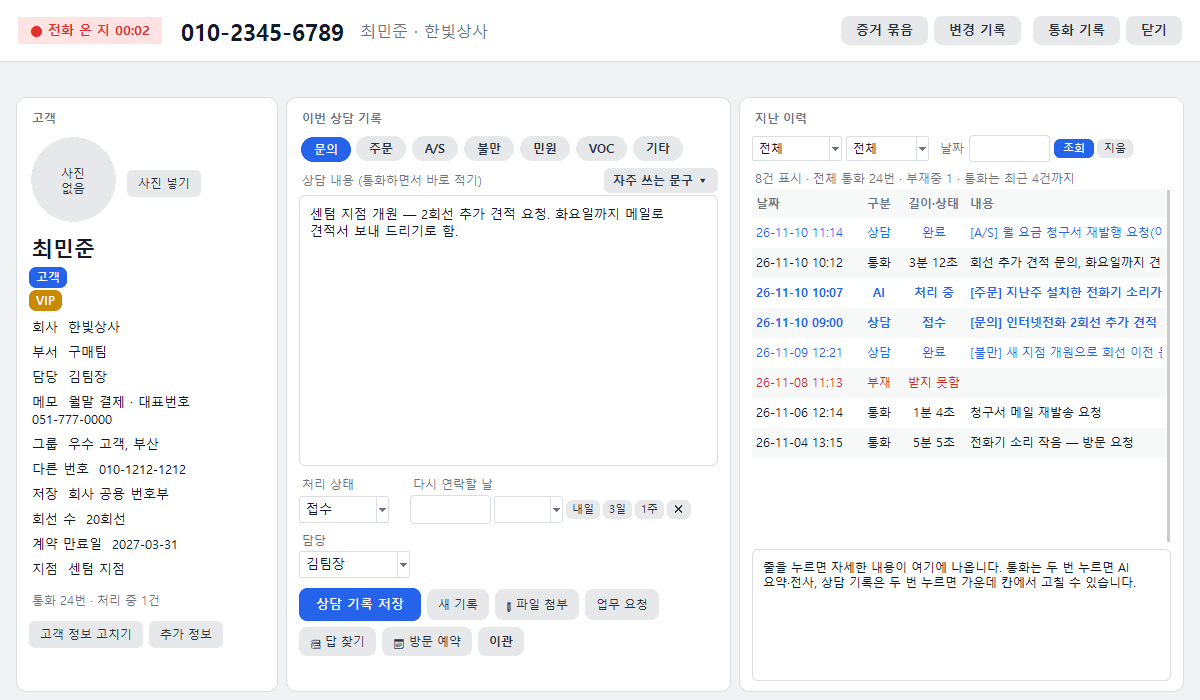
Notes the person answering must know, such as "Connect directly to the director" or "Outstanding balance," are shown in a large red banner at the top of the consultation window.
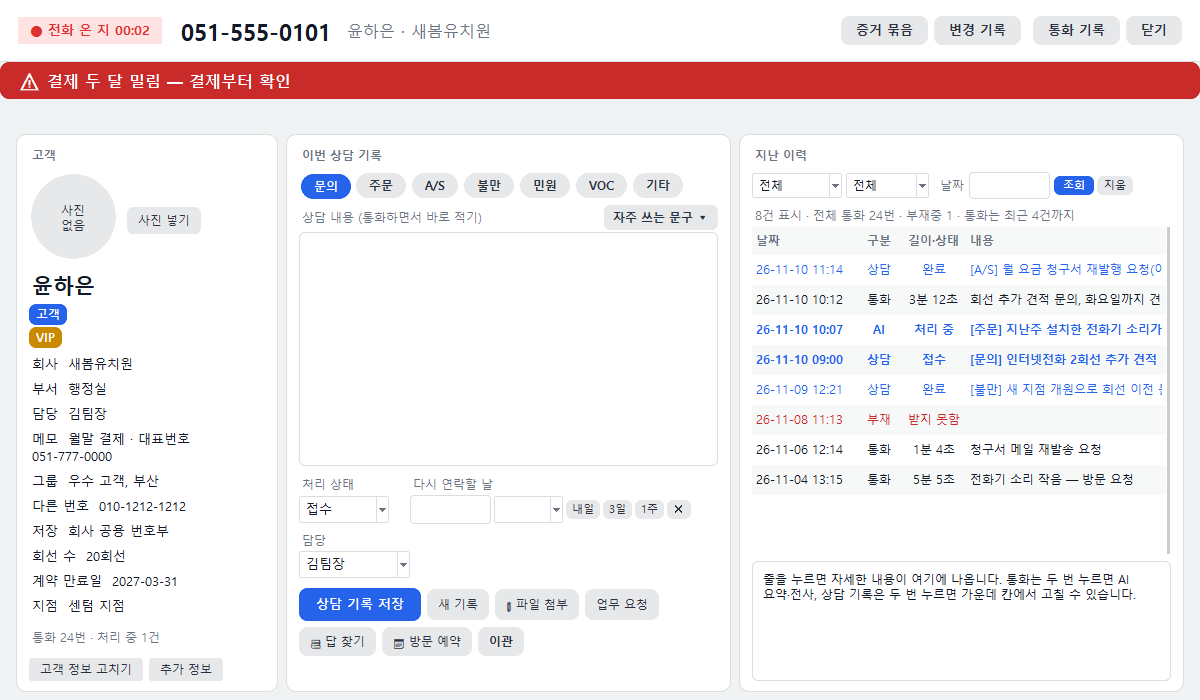
For a first-time number, a registration field appears on the left of the consultation window. Enter just a name and save, and the name will appear from the next call.
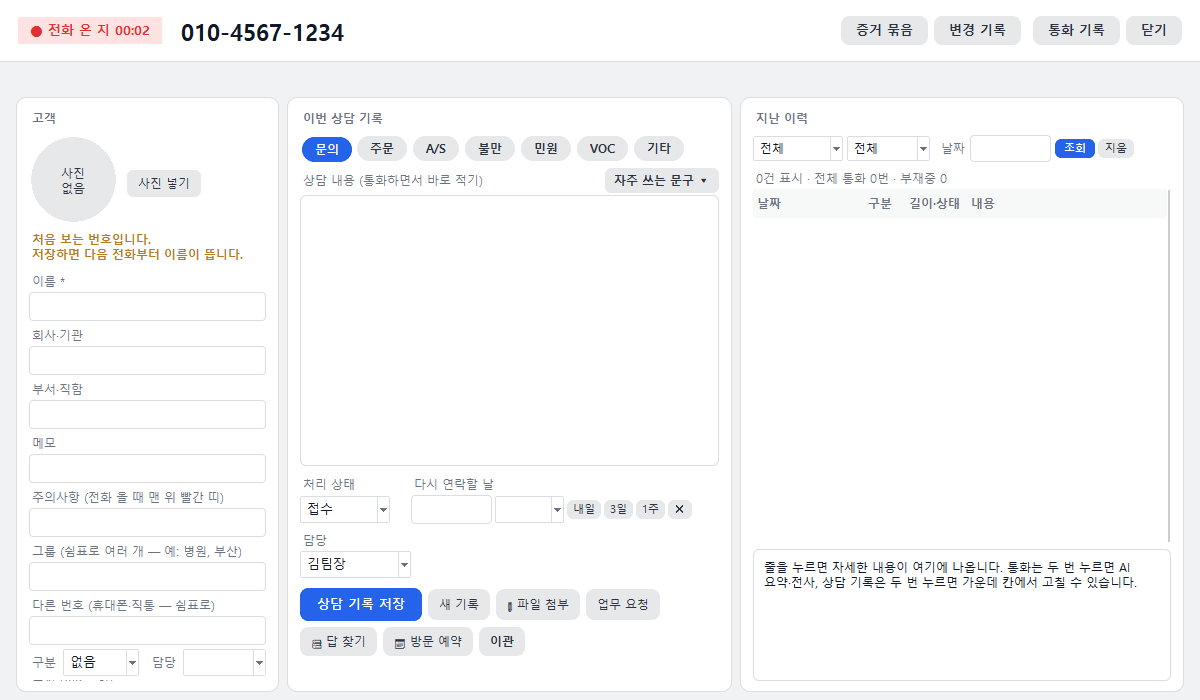
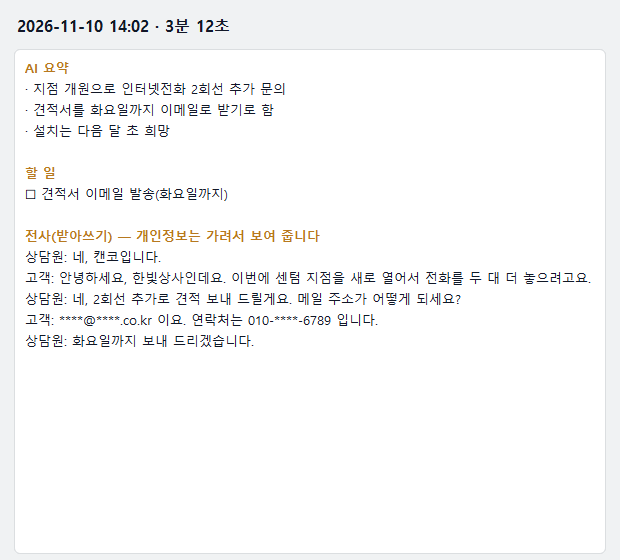
The recording AI summarizes the call and saves it automatically as a consultation record. Anything promised during the call stays in "Received" status so it is not missed.
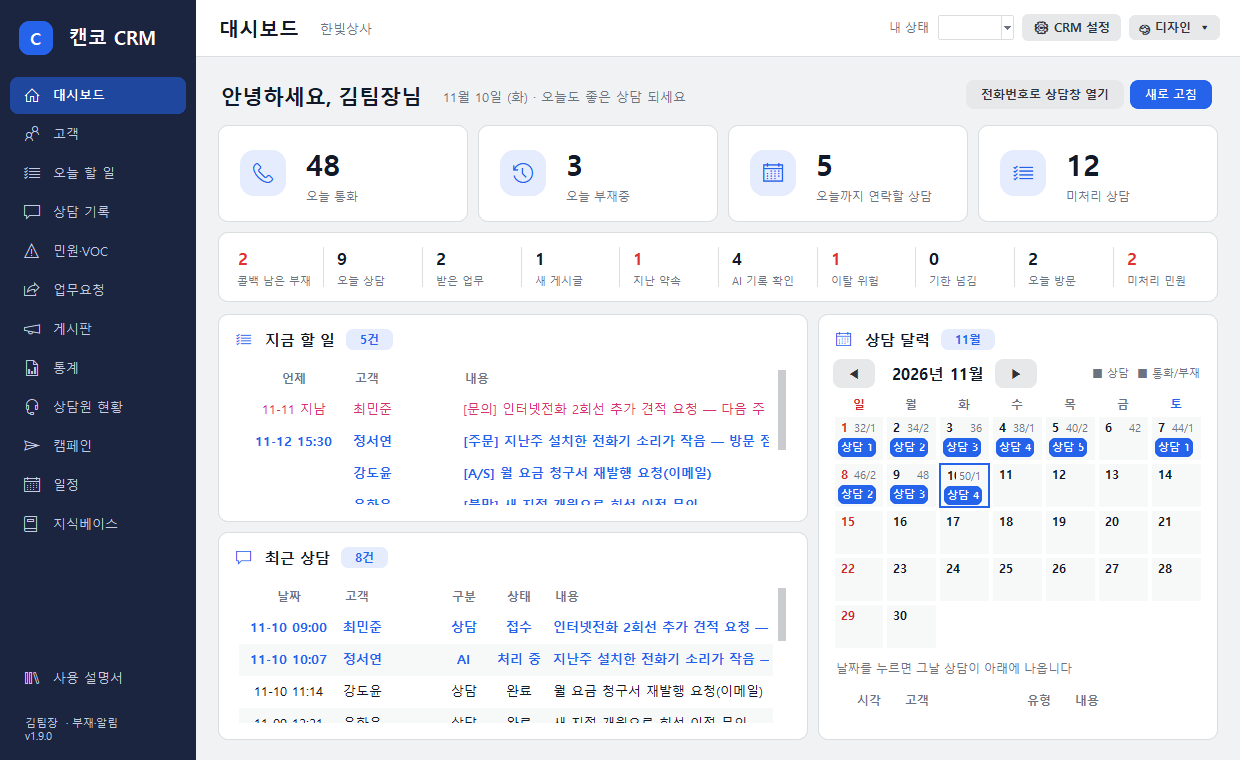
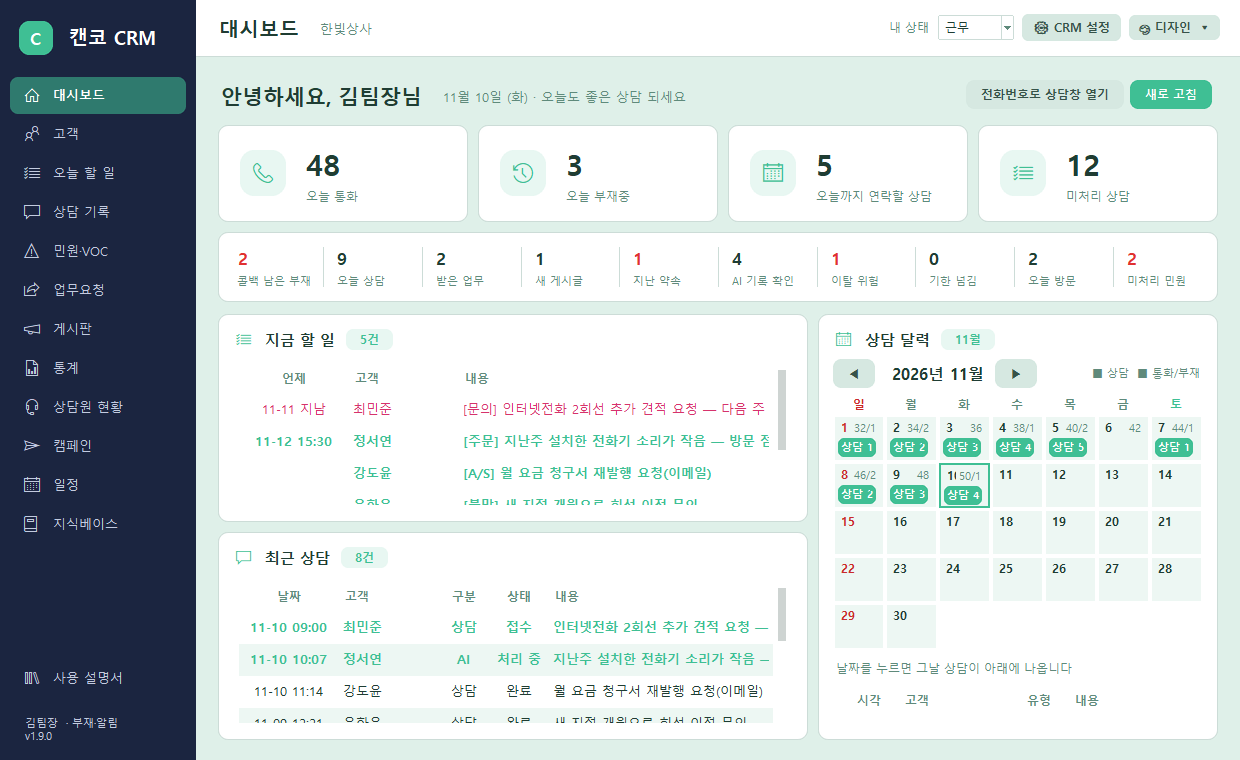
The main window has five tabs: Dashboard, Customers, Today's Tasks, Consultation Records and Statistics.
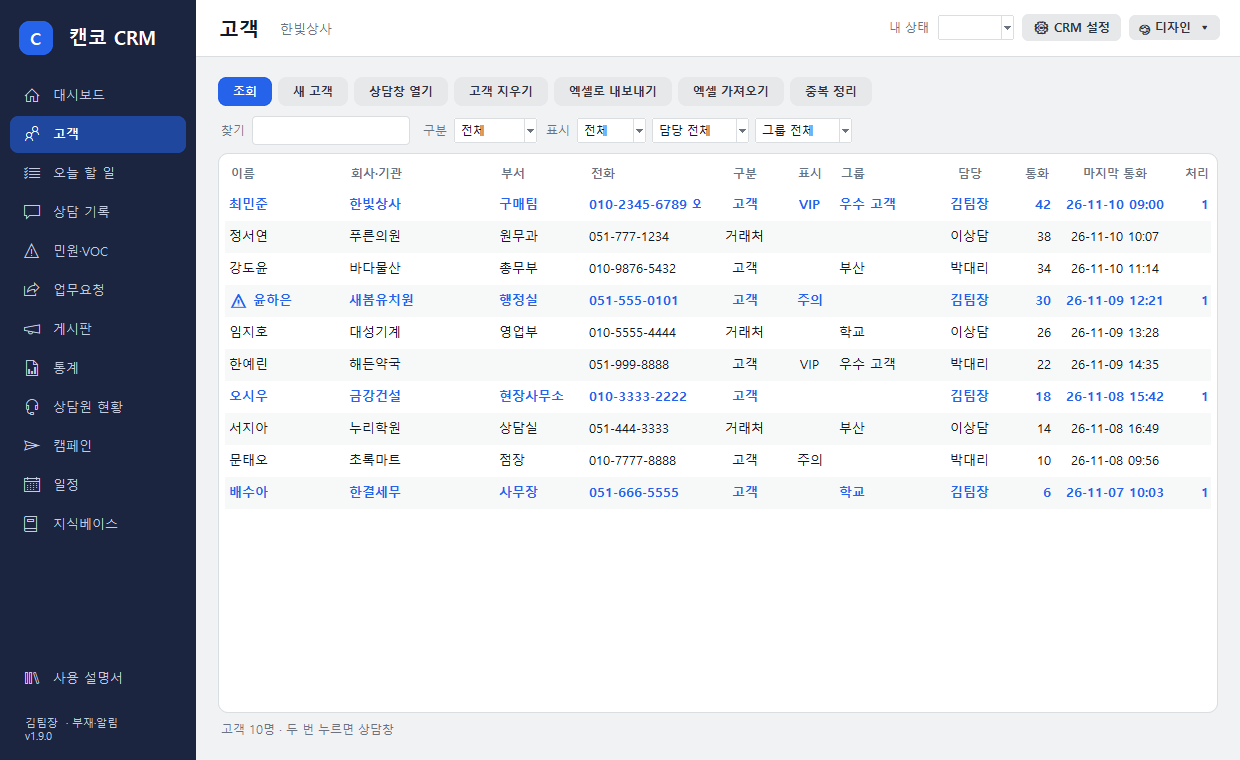
Search by name or number and filter by type, tag, owner or group. Register new customers and export or import via Excel.
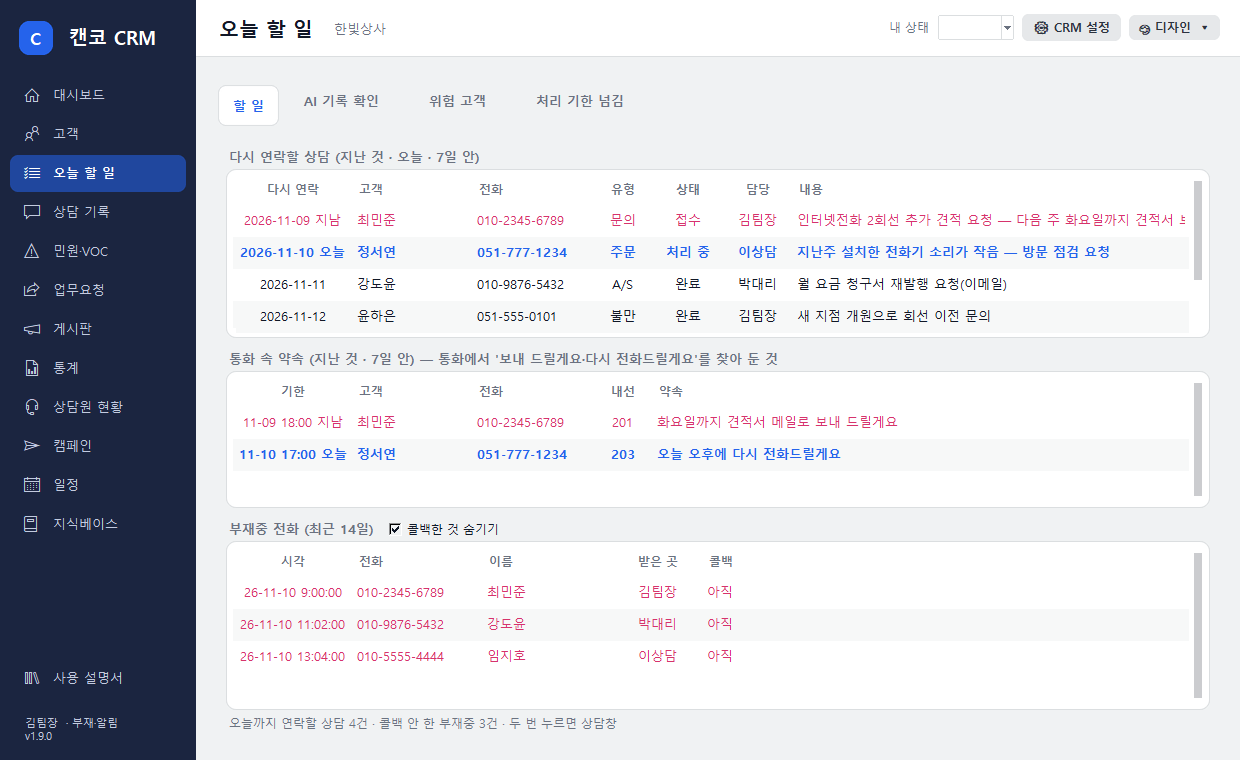
Follow-ups due and missed calls from the last 14 days. Returned calls are marked "Callback done," and you get a reminder at 9 a.m.
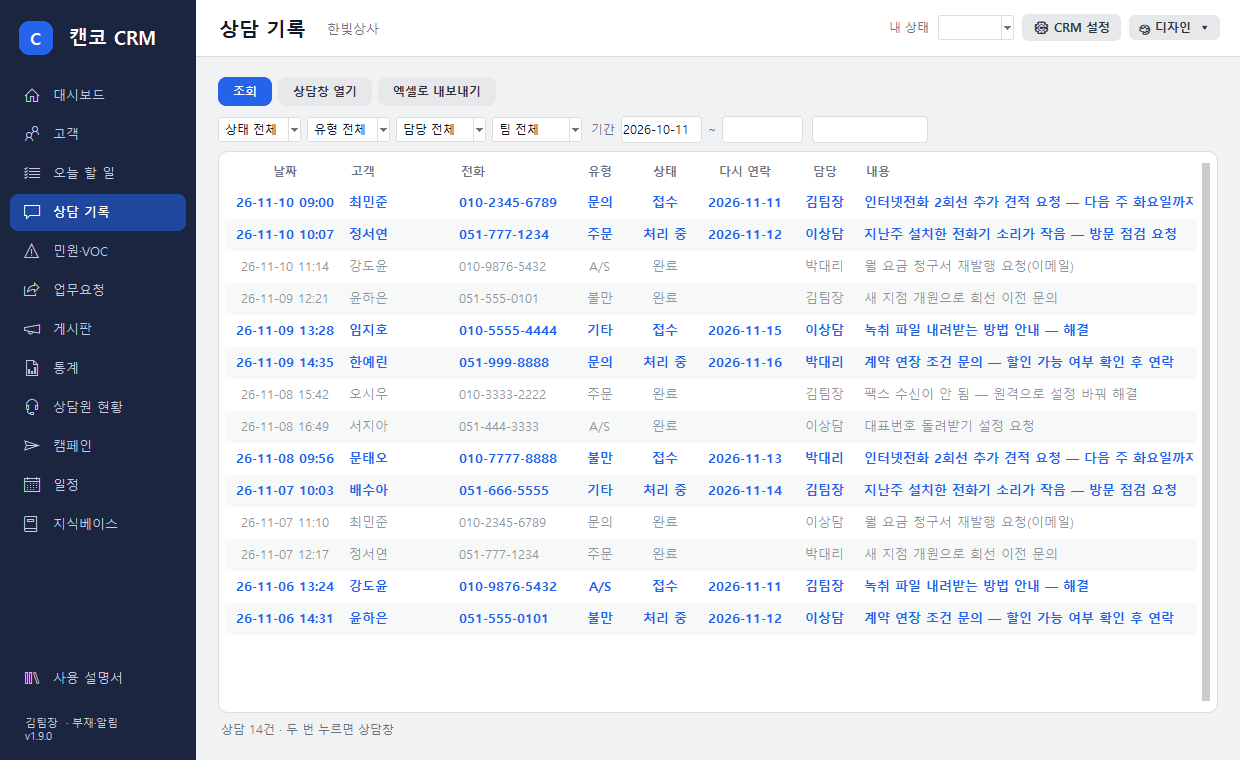
View records by status, type, owner, period or keyword, and export to Excel.
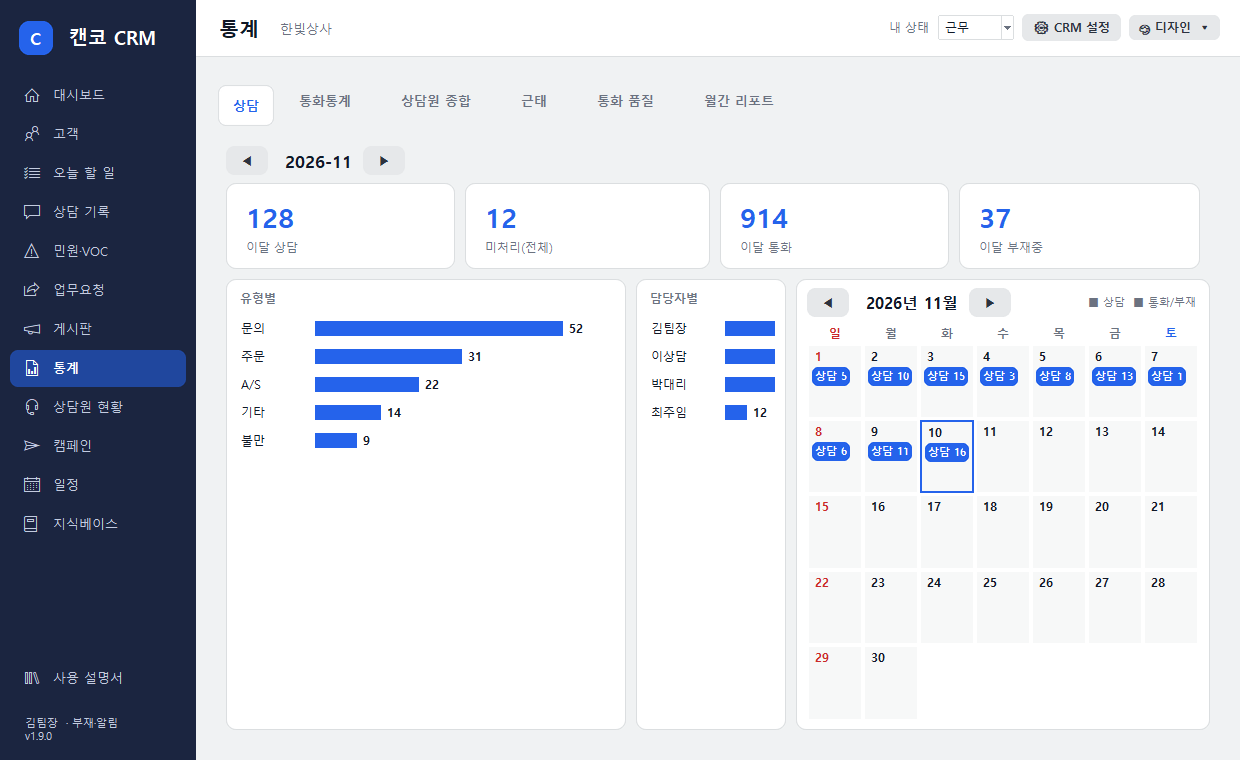
Monthly consultations, pending items, calls and missed calls; bar charts by type and owner; and a calendar by date.
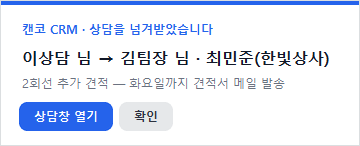
When a consultation's owner changes, a notification appears on that employee's PC. When the follow-up time arrives, the owner's PC is notified.
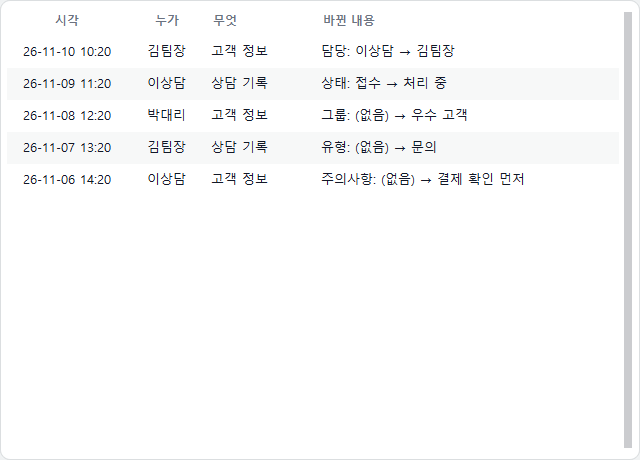
Every change to customer details and consultation records is logged: who, when and what.
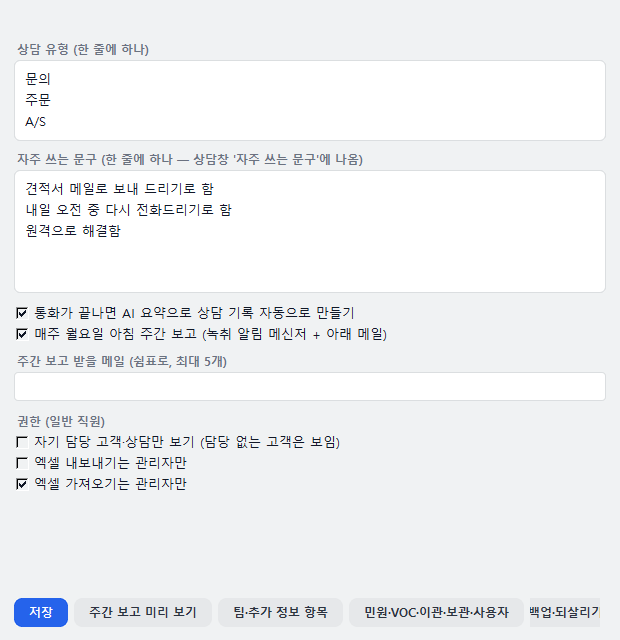
Customize consultation types and frequently used phrases for your company, and turn AI auto-logging on or off. Receive a weekly report every Monday morning via the recording alert messenger and your chosen email.
Choose from Default White, Rose, Lavender, Mint, Peach and Navy using [🎨 Design] at the top of the main window.
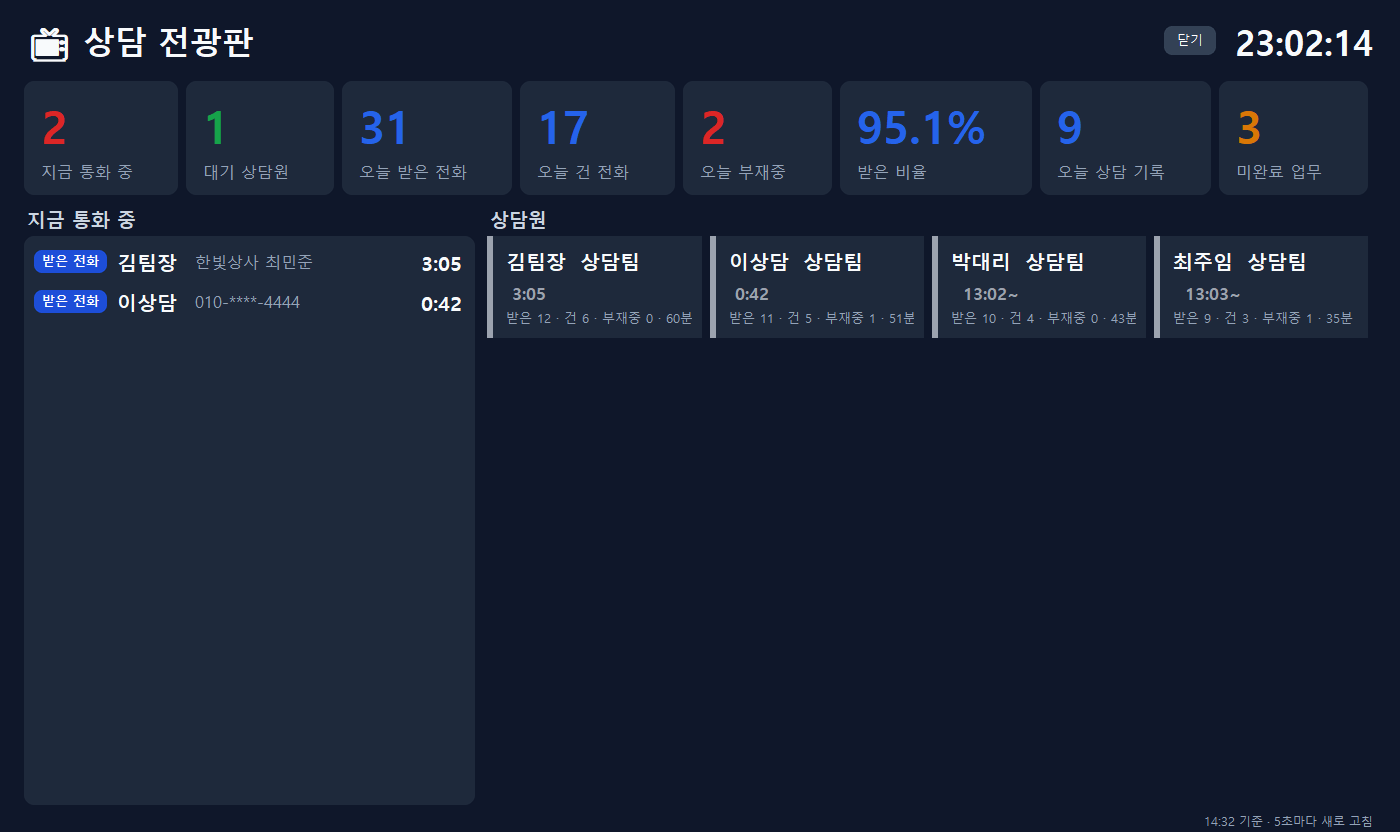
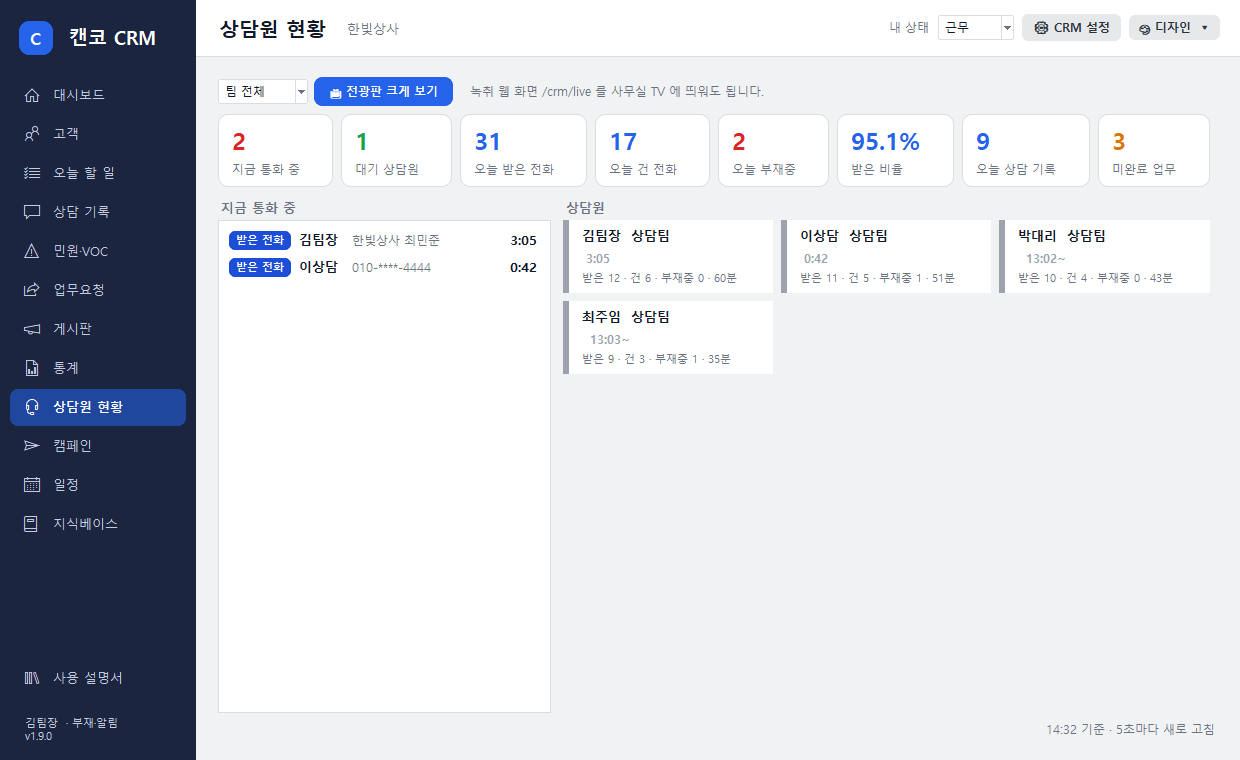
Shows who is on a call, available agents, today's incoming and outgoing calls, missed calls and answer rate, refreshed every 5 seconds. Display it as a wallboard on the office TV.
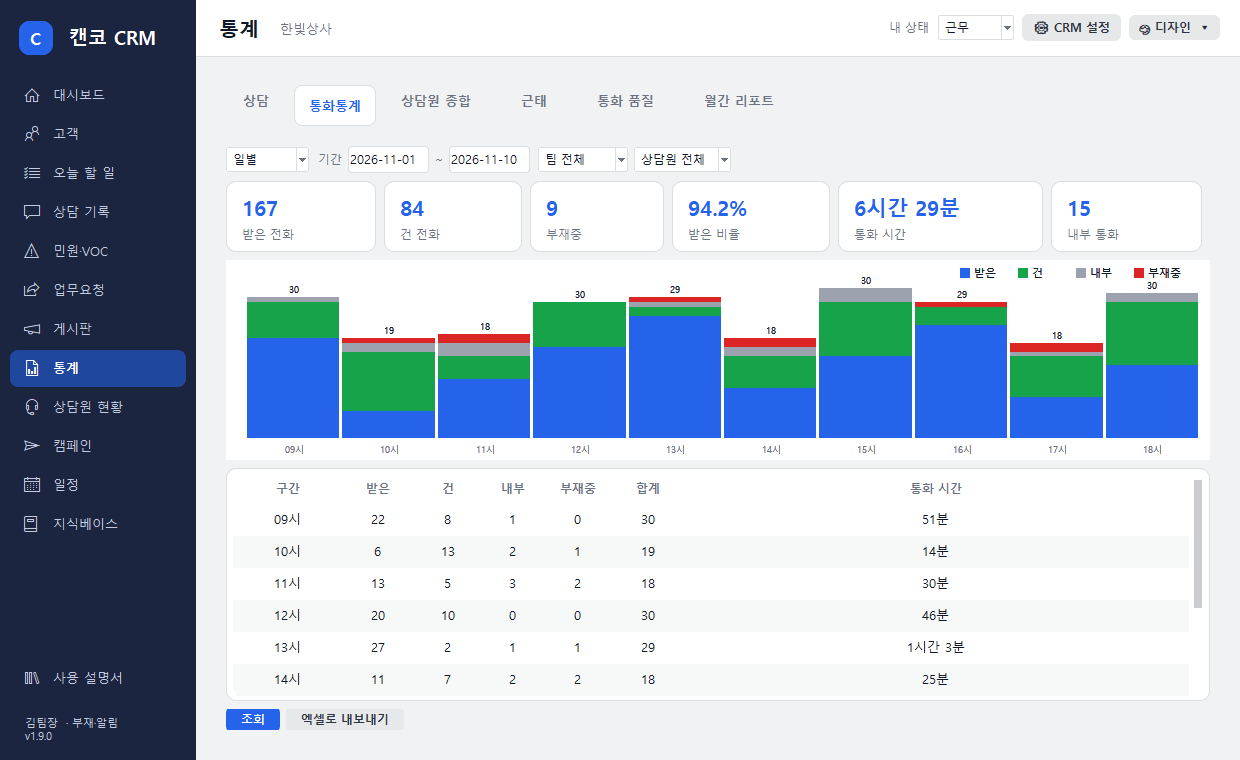
Call activity by hour, day, weekday, week and month, plus each agent's inbound and outbound calls, talk time and number of consultation records at a glance. View by team and export to Excel.
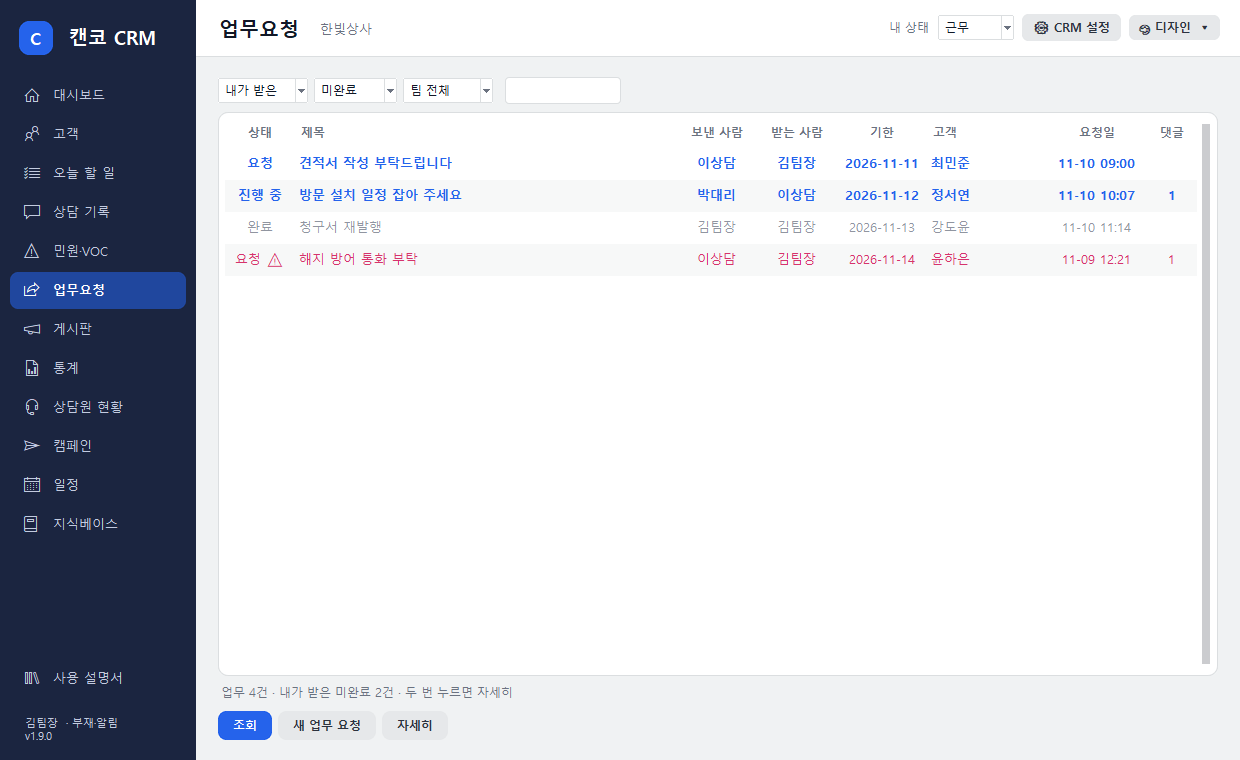
Assign tasks to other staff during a consultation and follow them through with status updates and comments. Notice, task and document boards are also built into the CRM.
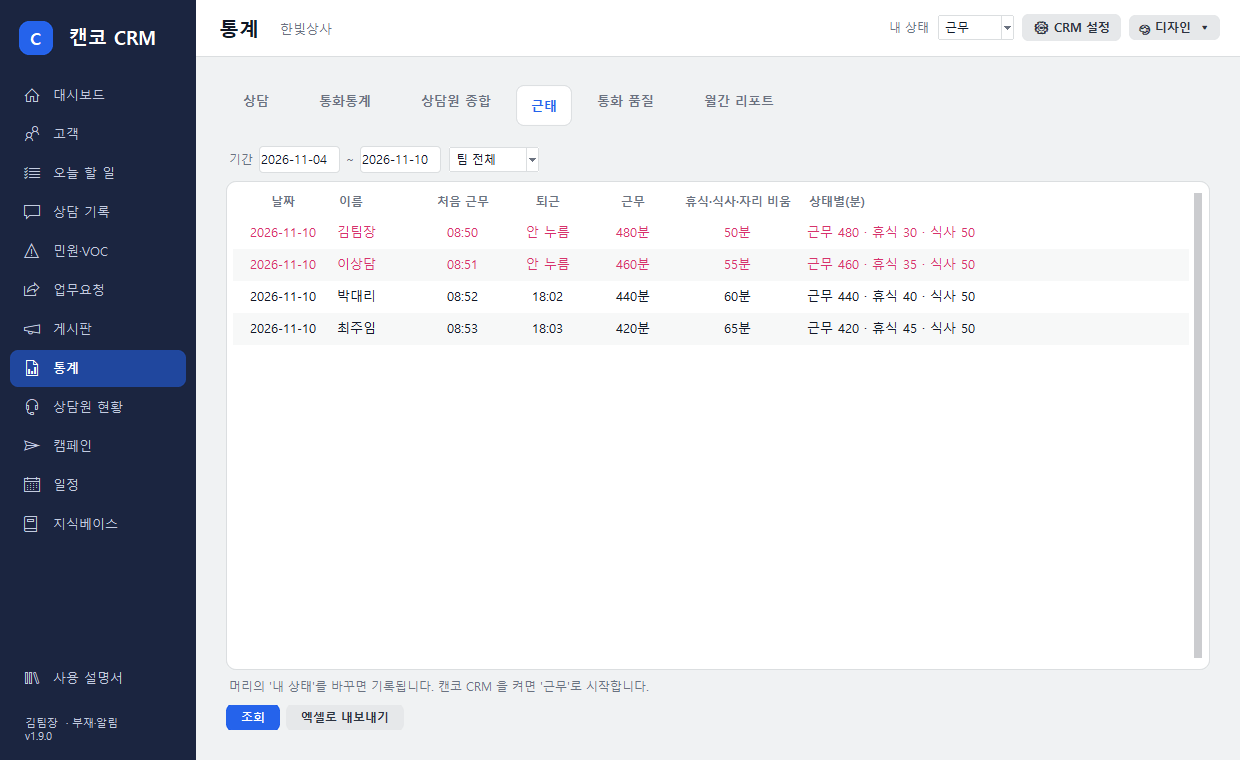
Working, break, meal and meeting statuses are recorded on the wallboard and in attendance. Create your own customer fields as needed (contract date, industry, etc.).
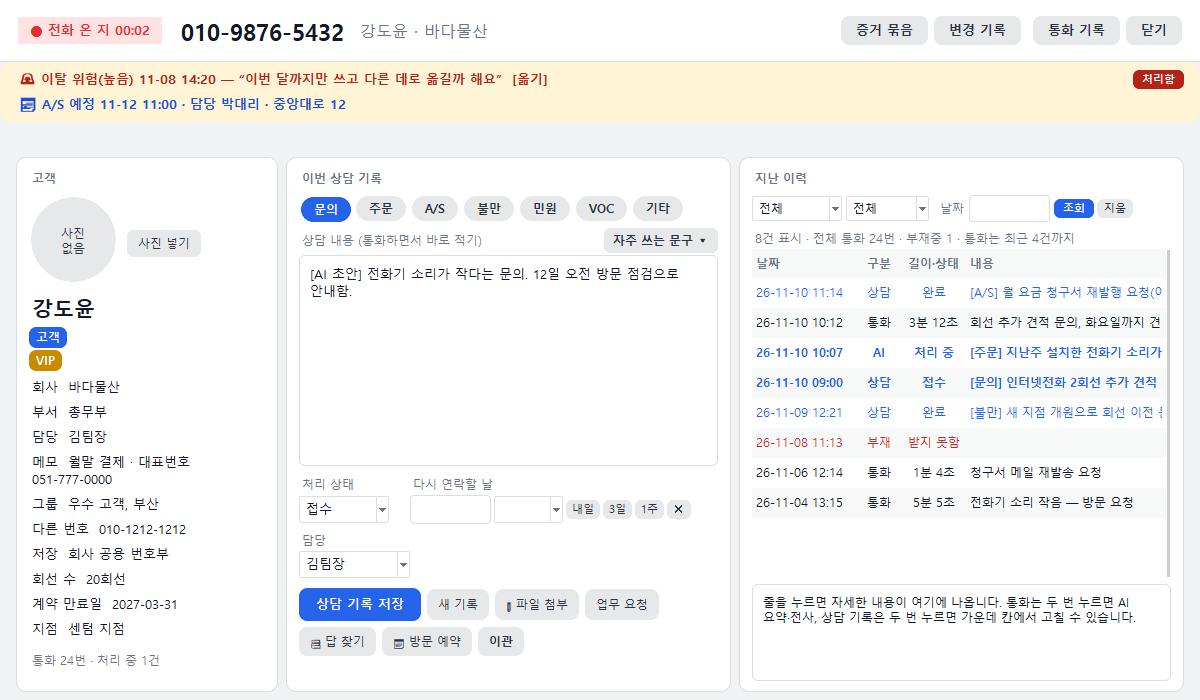
When a call ends, a draft consultation record is created from the transcript, with the owner and follow-up date already filled in. Staff just click to confirm.
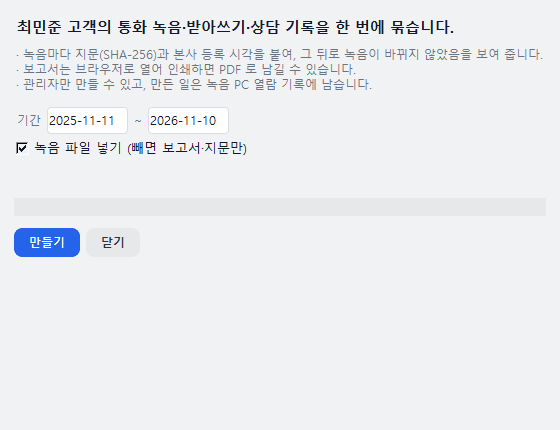
Bundle a customer's original recordings, transcripts and consultation records at once, with a fingerprint and headquarters registration time attached to each recording to show it has not been tampered with.
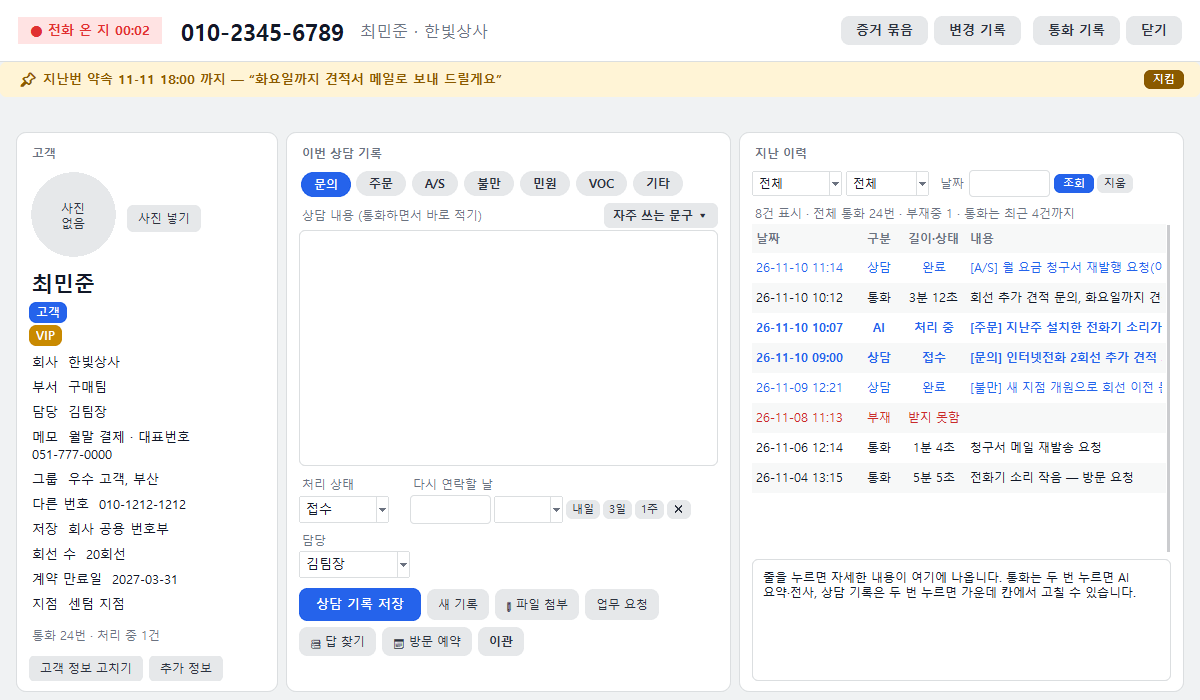
Finds promises made in calls, such as "I'll send the quote by tomorrow," reminds you before the deadline, and shows them at the top of the consultation window when that customer calls again.
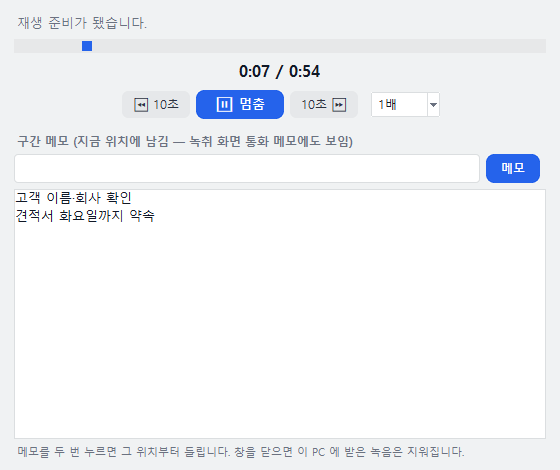
Listen directly in the consultation window and leave notes for each segment. Resident registration, card and account numbers in call content are masked automatically.
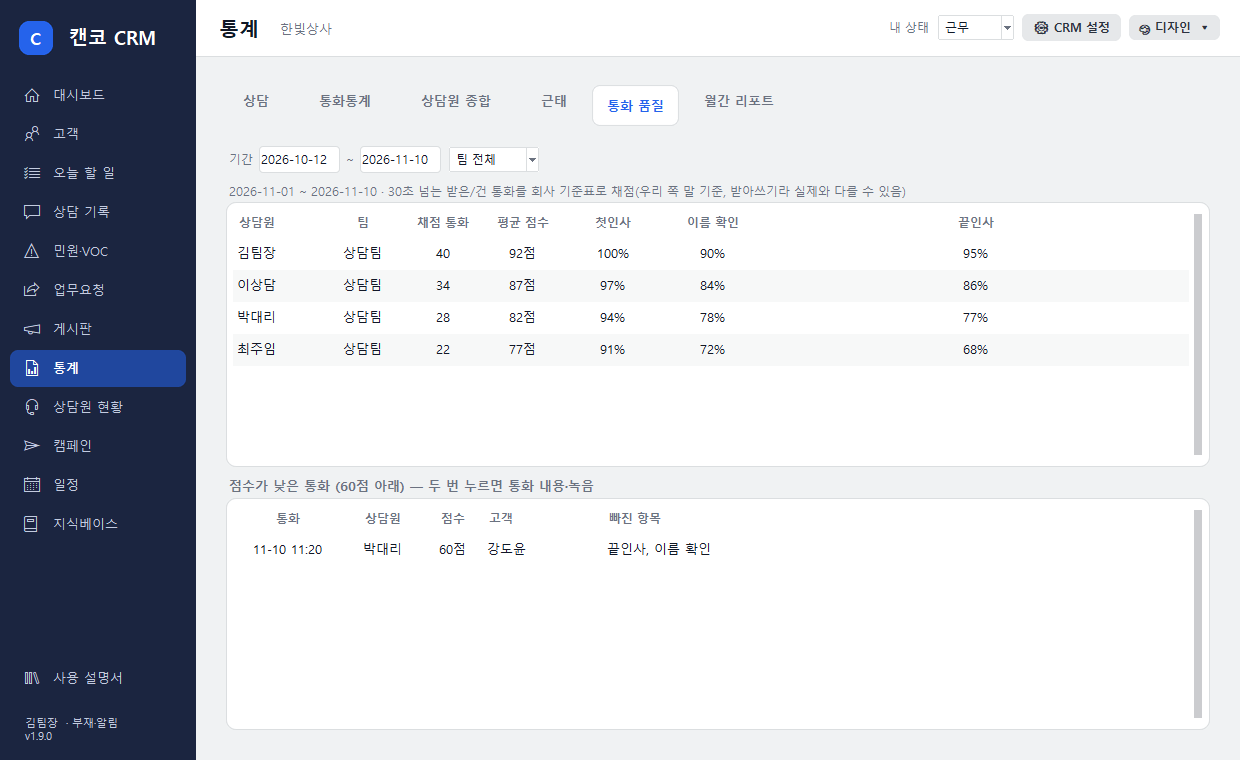
Scores calls against your company's criteria (greeting, verification, empathy, closing, prohibited expressions) and shows scores by agent and calls to improve.
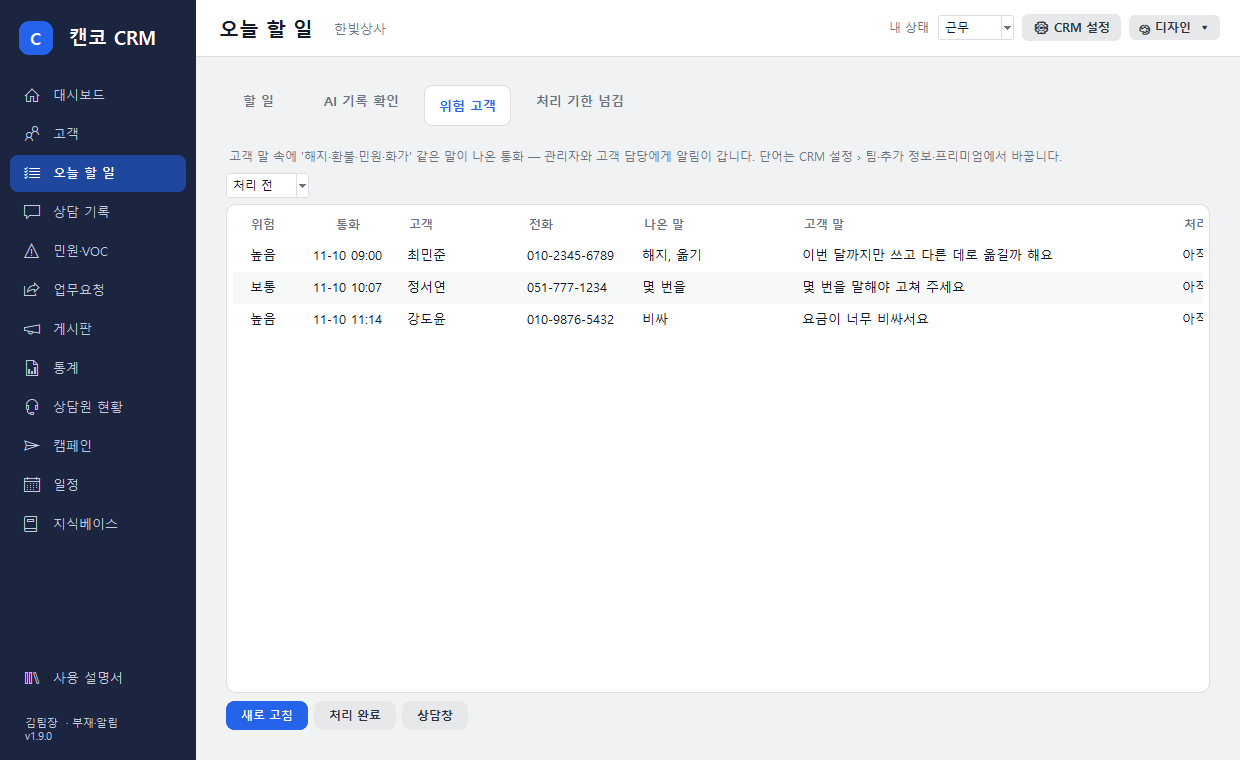
Alerts you immediately when words like "cancel," "refund" or "complaint" come up, and automatically escalates overdue consultations to managers.
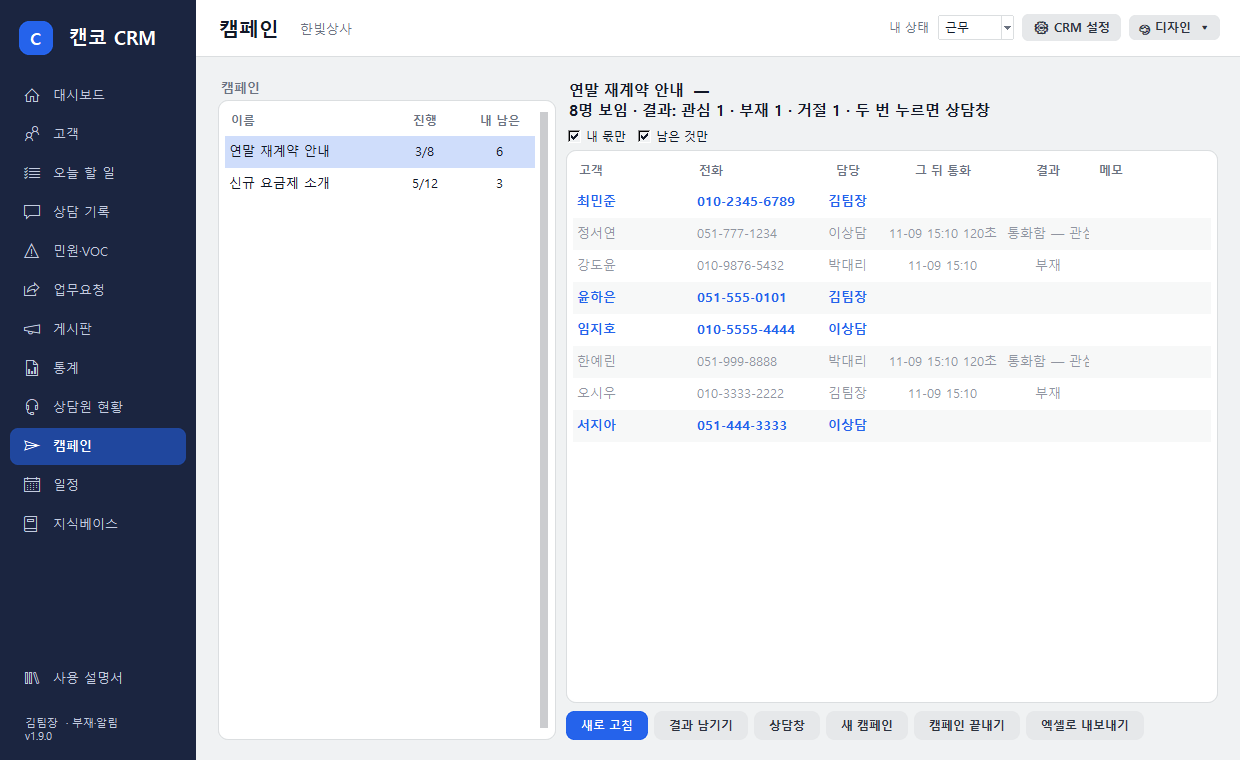
Distribute happy-call and renewal targets among staff and see results and progress at a glance.
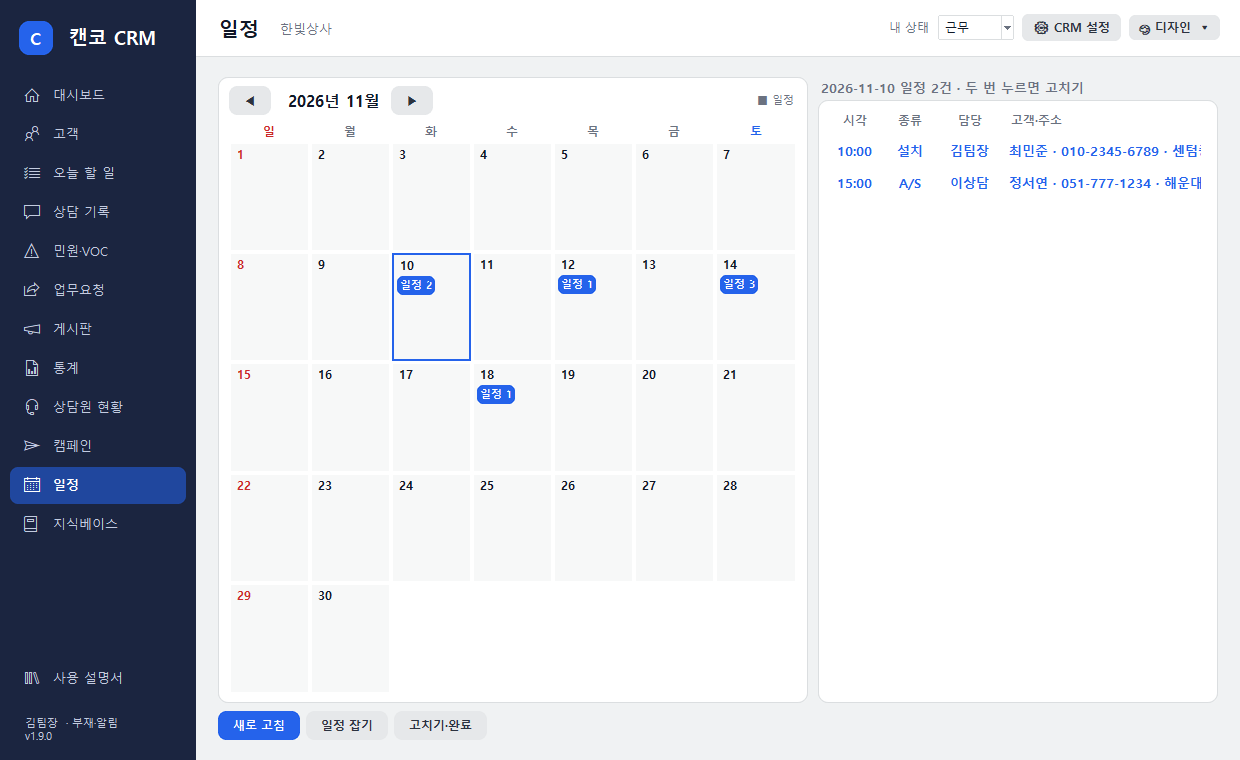
Book visits directly from the consultation window, and the assigned staff member is notified one hour beforehand.
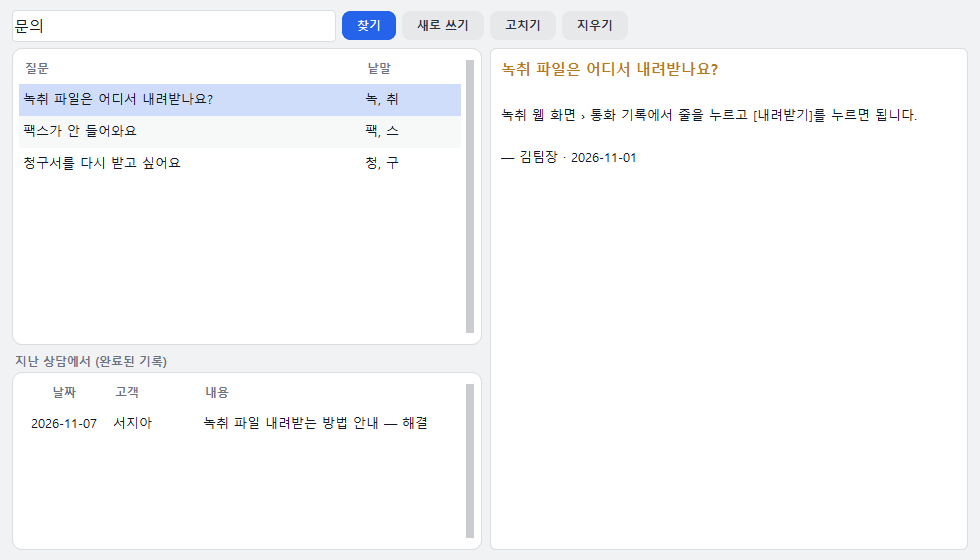
Collect frequently asked questions and answers, and instantly find the answer that matches the current conversation.
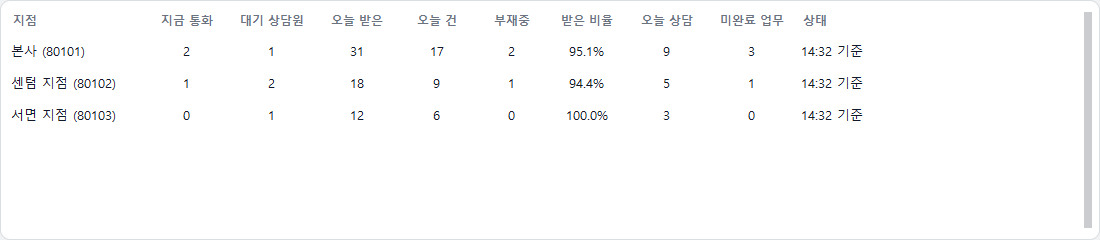
See call activity and available agents at headquarters and every branch in one table.
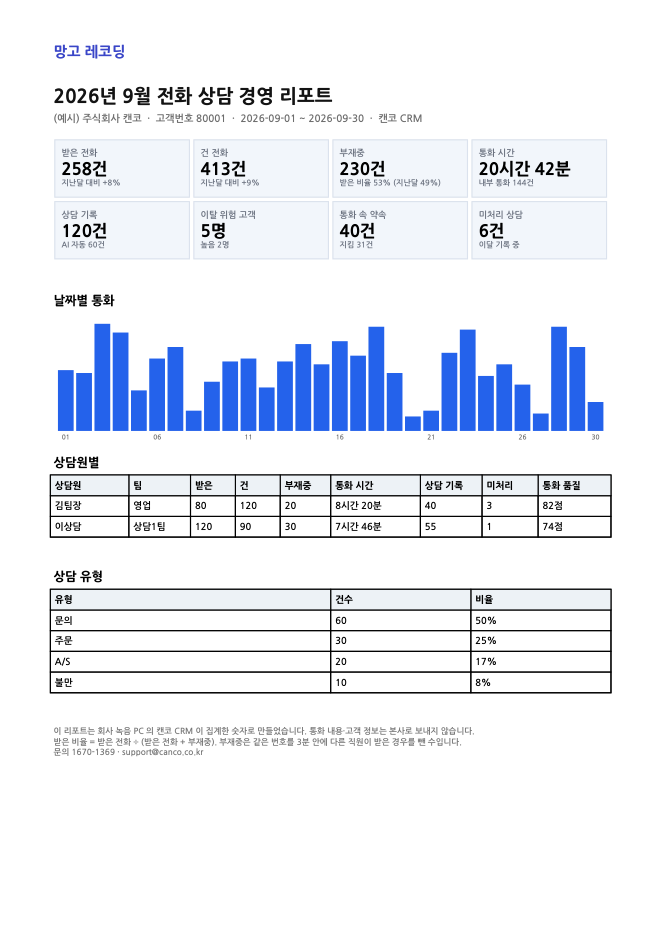
On the 1st of every month, a PDF of last month's phone consultation activity is sent to the CEO's email.
Customers, consultation records and photos are stored on the recording PC inside your company. Headquarters only relays requests and deletes them immediately.
Data accumulates on the customer's own recording PC.
It does not run outside the company network.
The device used to sign in is verified.
Works even in companies where business and phone networks are separated.
Download the "CANCO CRM" installer from Download Center › Utilities.
Run the downloaded file to install.
It carries over your Call Popup login, so there is no need to create a separate account.
When a call comes in, the consultation window opens automatically.
Available to companies using EduRecording or Manggo Recording. If you have trouble installing, please contact our customer center at 1670-1369.
From customers to activation, settlement and approvals. A business platform CANCO built and uses every day, designed for telecom resellers and sales and installation organizations.
Work once split across Excel, messengers and paper is connected around each customer.
Karina, CANCO's in-house compact AI model, sends a messenger alert every morning about things that must not be missed, such as contract expirations, unissued tax invoices and overdue or unpaid accounts.
Manage activation lists, sales policies and salesperson performance in one place.
Manage everything from quotes to construction contracts, schedules and site records in one continuous flow.
The whole team sees consultation records and customer history on the same screen.
CANCO BMS screens and features are customized to the way you work.
Download CANCO CRM and start using it today, and contact us for a custom BMS setup.